Cross-Machine Sync
使用 git 在多台电脑之间同步你的 Skill。
Overview
First Machine Setup
Interactive(引导式提示)
skillshare init --remote git@github.com:you/my-skills.git
Non-interactive(无提示)
# Remote 已有你的 Skill(或从空白 Source 开始)
skillshare init --remote git@github.com:you/my-skills.git --no-copy --all-targets --no-skill

# 第一台机器已有既有的 Claude Skill:在 init 时一并导入
skillshare init --remote git@github.com:you/my-skills.git --copy-from claude --all-targets --no-skill
这会:
- 建立 Source 目录
- 以初始 commit 初始化 git
- 加入 remote
- 自动侦测并设置 Target
之后可选(仅在设置完成后又安装了其他 AI CLI 时才需要):
skillshare init --discover
接着 push 你的 Skill:
skillshare push
为既有设置加入 remote:
skillshare init --remote git@github.com:you/my-skills.git
即使在初次设置之后执行,这个指令依然有效——它只会加入 remote。
Second Machine Setup
运行 skillshare init,选择 Connect my existing skillshare repo,再粘贴 repo URL:
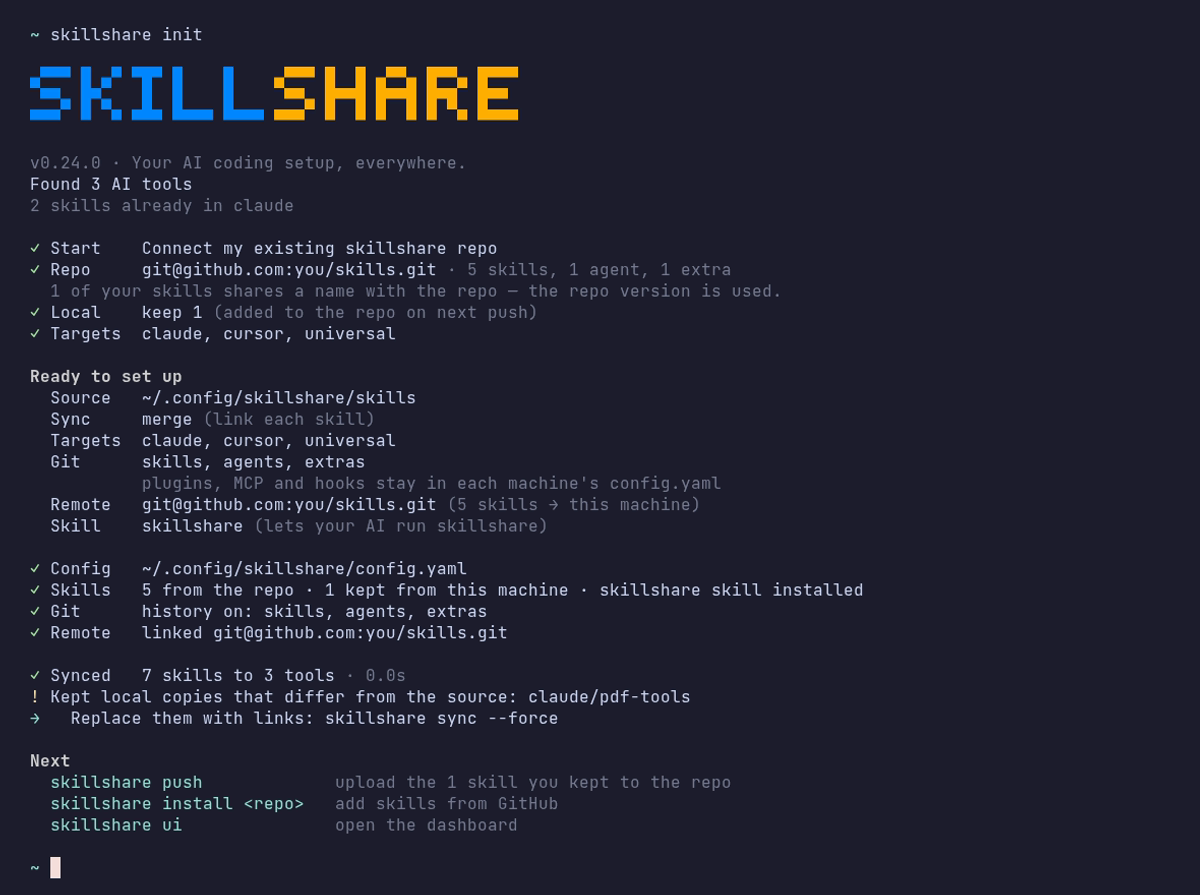
也可以直接传入 URL:
skillshare init --remote git@github.com:you/my-skills.git
Init 会先检查 repo(不写入任何东西),再把它拉取下来,不需要手动执行 git clone。
- 把 repo clone 到临时文件夹,统计 skills 数量并判断结构:用
--git-root root推送的整个文件夹,或放在skills/文件夹中的 skills - 这台机器上与 repo 同名的 skills 使用 repo 版本;只存在于这台机器的 skills 会保留,并在下次
skillshare push时加入 repo - 确认后:创建 source、初始化 git、添加 remote、重置为 remote 分支并设置 tracking
- 配置检测到的本地 targets,并询问是否进行首次同步
若你偏好手动控制:
# 直接 clone,再以既有 Source 执行 init
git clone git@github.com:you/my-skills.git ~/.config/skillshare/skills
skillshare init --source ~/.config/skillshare/skills
skillshare sync
Daily Workflow
Machine A:修改并 push
# 编辑 Skill(透过 symlink,变更会立即可见)
$EDITOR ~/.config/skillshare/skills/my-skill/SKILL.md

# 可选:建立本地检查点而不 push
skillshare commit -m "Update my-skill"

# 准备好分享时再 push 到 remote
skillshare push -m "Update my-skill"
Machine B:拉取并 sync
skillshare pull
就这样。pull 会在拉取后自动执行 sync。它会按照 git root scope 包含的内容执行 sync:默认是 skills,agents / extras 作用域同步对应资源,git_root: root 则三者都同步。Plugins、MCP server 和 hooks 需要下面的额外步骤。
一条命令双向同步
如果你在多台机器上编辑 skills,请改为运行下面这条命令,而不是分别运行 push 和 pull:
skillshare push --pull -m "Update my-skill"
它会 commit 你的更改,合并其他机器推送的内容,然后 push 并 sync targets。如果遇到冲突,它会在推送任何内容之前停止。参见 同时 Push 与 Pull。
Plugins, MCP and Hooks
push 和 pull 只对 git root 目录中的文件做版本控制。Plugins、hooks 和 MCP server 是 config.yaml 中的设置,而 config.yaml 永远不在这个 repository 中:默认的 skills scope 把它放在 repo 之外,root scope 则会 ignore 它。每台机器都保留自己的 config.yaml,以及自己的 targets 和路径。
| 资源 | 存储位置 | 是否随 push / pull 移动 |
|---|---|---|
| Skills | Skills source | 是 |
| Agents | Agents source | git_root: agents 或 root 时 |
| Extras | Extras source | git_root: extras 或 root 时 |
| MCP servers | config.yaml,或 sources.mcp 指定的文件 | 仅当该文件位于 repository 内时 |
| Plugins | config.yaml 中的 plugins: | 否 |
| Hooks | config.yaml 中的 hooks: | 否 |
在另一台机器 pull 之后,其余部分需要自己应用:
skillshare pull
skillshare sync --all              # 加上 agents、extras、MCP 和 hooks
skillshare sync plugins --no-tui   # plugins 永远不包含在 --all 中
MCP servers
把 server 定义放在 repository 内的独立文件中。使用 git_root: root 时,repository 就是存放 config.yaml 的目录(~/.config/skillshare,Windows 上是 %AppData%\skillshare),因此相对路径的 sources.mcp 会被 commit,而 config.yaml 留在本地:
sources:
  mcp: ./mcp.yaml

mcp:
  targets: [claude, codex]
mcp.targets 保留在 config.yaml 中,因此每台机器可以各自选择接收的 client。每台机器都要设置 sources.mcp。要把现有 server 移出 config.yaml,请参阅 将 MCP 拆分到独立文件中。要把现有设置切换到 root scope,请参阅 git_root。
Skillshare 把凭据保存为 fromEnv 引用,从不保存实际的值。请在每台机器上设置这些环境变量,并确保 Agent 能读取到。
Plugins
Plugin 定义不会通过 git 传递。请在每台机器上从相同的来源重新添加:
-
在第一台机器的 dashboard 打开 Plugins → Share,复制命令。它会列出从 HTTPS Git 来源添加的 plugins,例如:
skillshare plugin add https://github.com/acme/plugins --plugin review -g --no-tui -
在另一台机器运行该命令,在 Plugins 页面勾选 Agents,然后运行
skillshare sync plugins。
需要在多台机器上使用的 plugin,请用 Add plugin 从来源添加,而不是 Import installed。Import 只记录 native 安装。在另一台机器上,Claude 和 Codex 会从同名的 native marketplace 重新安装;如果那台机器没有注册该 marketplace,这个 plugin 就会被跳过。Cursor 和 Antigravity 则完全无法重新安装 imported plugin。从本地目录添加的 plugin 不会出现在 Share 中,因为该路径只存在于第一台机器上。
sync plugins 会安装缺少的 plugins,已安装的保持不变。要更新它们,先运行 skillshare plugin check,再运行 skillshare plugin update。请参阅 跨工具管理 plugins。
Hooks
Hooks 没有独立的文件。把 config.yaml 的 hooks: 部分复制到另一台机器,然后运行 skillshare sync hooks。
What Stays on Each Machine
- 安装 plugin 用的 native CLI(
claude、codex等)必须安装在 Skillshare 运行的环境中,并且位于PATH上。计划任务的PATH通常比你的终端短。Codex 也会从 Codex 桌面 app 和 Homebrew 的文件夹里找;装在其他位置的机器,请设置SKILLSHARE_CODEX_CLI。 - 登录状态、OAuth token、native 信任确认以及启用/禁用状态,都保留在各个 Agent 中。
- MCP server 引用的环境变量的值。
Commands
Commit
建立本地检查点而不 push:
skillshare commit                  # 默认讯息
skillshare commit -m "Add pdf"     # 自定义讯息
skillshare commit --dry-run        # 预览
实际执行内容:
git add -A
git commit -m "Add pdf"
commit 不需要 remote,也绝不会 push。
Push
Commit 并 push 本地变更:
skillshare push                  # 自动生成讯息
skillshare push -m "Add pdf"     # 自定义讯息
实际执行内容:
git add -A
git commit -m "Add pdf"
git push          # 首次 push 时自动设置 upstream
Pull
拉取 remote 变更并 sync:
skillshare pull
实际执行内容:
git pull           # 两台机器都有新 commit 时会合并;首次拉取时改用 fetch + merge 或 reset
skillshare sync
Conflict Handling
Pull 失败(本地有未 commit 的变更)
若想保留本地变更但还不打算 push,先在本地 commit:
skillshare commit -m "Save local changes"
skillshare pull
Push 失败(remote 领先)
$ skillshare push
Push failed
  Remote may have newer changes
  Run: skillshare pull
  Then: skillshare push
解法:
skillshare pull
skillshare push
Pull 仍因本地未 commit 的变更而失败
$ skillshare pull
Local changes detected
  Run: skillshare push
  Or:  cd ~/.config/skillshare/skills && git stash
解法:
# 选项 1:先在本地 commit
skillshare commit -m "Local changes"
skillshare pull

# 选项 2:先 push 你的变更
skillshare push -m "Local changes"
skillshare pull

# 选项 3:暂时 stash 变更
cd ~/.config/skillshare/skills
git stash
skillshare pull
git stash pop
Merge 冲突
两台机器都有新 commit 时,pull 会把它们合并。.metadata.json 的冲突会自动解决。其他文件发生冲突时,pull 会停止、撤销合并,并列出冲突的文件:
$ skillshare pull
pull stopped: this machine and the remote both changed my-skill/SKILL.md; the merge was undone, resolve it with git in ~/.config/skillshare/skills
解决方法:
cd ~/.config/skillshare/skills
git pull --no-rebase          # 重新合并并保留冲突
# 编辑冲突文件
git add .
git commit --no-edit
skillshare push
skillshare sync
Check Status
skillshare status
会显示:
- Git 状态(clean、ahead、behind)
- Remote 设置
- Sync 状态
Private Repository
私有仓库请使用 SSH URL:
skillshare init --remote git@github.com:you/private-skills.git
Tips
使用 SSH 密钥
设置 SSH 密钥以避免密码提示:
ssh-keygen -t ed25519 -C "your@email.com"
# 将公钥加入 GitHub
dotfiles 的可移植路径
若你透过 dotfiles 分享 config.yaml,启用 preserve_tilde_on_save 可将路径保持为 ~/...,而不是 /home/alice/...:
preserve_tilde_on_save: true
这能避免同一份 config 在不同用户名或不同 OS 家目录前缀的机器间使用时产生杂讯般的 diff。参见 Configuration — preserve_tilde_on_save。
多个 remote
加入备用 remote:
cd ~/.config/skillshare/skills
git remote add backup git@gitlab.com:you/skills-backup.git
git push backup main
在 shell 启动时 sync
加入 ~/.bashrc 或 ~/.zshrc:
# 在开启终端时 sync skillshare(若已设置 remote)
skillshare pull 2>/dev/null
Alternative: Install from Config
若不想设置 git remote,config.yaml 也能当作可移植的 Skill 清单。每次 install / uninstall 都会自动更新 skills: 区块,而 skillshare install(不带参数)会重新安装清单中的所有项目:
# Machine A —— config.yaml 记录你安装过的内容
skillshare install anthropics/skills -s pdf
# config.yaml 现在会有:skills: [{name: pdf, source: "..."}]

# Machine B —— 复制 config.yaml,然后:
skillshare install      # 安装清单中的所有 Skill
skillshare sync
该用哪一种
push / pull | install(不带参数) | |
|---|---|---|
| 同步的内容 | 实际 Skill 文件(完整内容) | 仅同步来源 URL——安装时重新下载 |
| 本地/手写 Skill | 包含在内 | 不包含(没有来源 URL) |
| 所需设置 | Source 目录需有 Git remote | 只需 config.yaml |
| Project mode | 仅限 Global | 可搭配 -p(.skillshare/config.yaml)使用 |
| 维护方式 | 变更后手动 push | 于 install/uninstall 时自动调解 |
建议:个人跨机器同步请用 push/pull。团队 onboarding 与专案设置请用 config 中的 install。
See Also
- push — Push 到 remote
- pull — 从 remote pull
- install — 从 config 安装
- Organization-Wide Skills — 团队分享
- init — 以
--remote执行 init