mcp
Manage portable MCP connection definitions and synchronize native Agent settings. Start with Set up MCP once.
Commands
skillshare mcp
skillshare mcp add
skillshare mcp edit
skillshare mcp edit docs --url https://updated.example/mcp --no-tui
skillshare mcp add docs --url https://example.com/mcp --target claude --sync
skillshare mcp add local --target codex -- company-mcp --workspace /path/to/workspace
skillshare mcp import docs --from claude --target claude --target cursor --sync
skillshare mcp import docs --file ./provider.json --target claude
skillshare mcp list --json
skillshare mcp check
skillshare mcp check docs --json --no-dns
skillshare mcp check --live --timeout 30s
skillshare mcp remove docs --sync
skillshare mcp remove docs --keep-files
skillshare mcp restore BACKUP_ID --dry-run
skillshare mcp serve
skillshare mcp serve --target claude --http 127.0.0.1:8765
skillshare mcp serve --check
skillshare sync mcp --dry-run --json
skillshare sync mcp
skillshare sync --all
| Option | Meaning |
|---|---|
--target CLIENT | Receiving client; repeat to select multiple clients. --target none keeps the server in Skillshare without writing it to any client. See below. With serve, --target NAME names a skills target instead; see below |
--url URL | Streamable HTTP endpoint for add |
-- command args... | Local executable and literal arguments for add |
--disabled | Project mode, with add: turn off a server the Agent's global config defines. See below |
--tools-allow TOOLS | Only these tools, separated by commas; * matches any characters; "" clears. See Tool policy |
--tools-deny TOOLS | Never these tools, separated by commas; beats allow; "" clears. See Tool policy |
--pi-options JSON | Other per-server fields of Pi's built-in MCP, as a JSON object. See Pi |
--from CLIENT | Existing client to import, or the format of --file |
--file PATH | Native JSON/JSONC, TOML or Goose YAML; .toml defaults to Codex, other formats are detected from their MCP section; use --from for an explicit dialect |
--sync | Save and synchronize; noninteractive add/import/remove otherwise save only |
--keep-files | With remove: stop managing the server and leave its Agent entries as they are. Not with --sync. See below |
--replace | Explicitly replace an existing source definition during add/import; on import, also rewrite the imported client's entry when it differs |
--dry-run, -n | Preview without saving or writing native configuration |
--json | Structured output; sync/preview reports contain names, paths and actions, not server values |
--no-dns | With check: skip the host lookup of remote servers. See below |
--live | With check: also start each local server and call each remote one. See below |
--timeout DURATION | With check --live: time limit for each server's probe, such as 30s; default 10s |
--http ADDR | With serve: listen for Streamable HTTP on ADDR instead of using stdio. See below |
--tls-cert FILE, --tls-key FILE | With serve --http: serve HTTPS with this PEM certificate and key; required off loopback |
--check | With serve: list the skills it would skip and why, then exit without serving |
--no-tui | Disable interactive menus; also disabled by tui: false, --json, or non-terminal input/output |
--revision ID | Require a matching preview for add/import/remove or sync mcp |
--global, -g | Use global Skillshare configuration |
--project, -p | Use project Skillshare configuration |
With no subcommand, mcp opens the searchable manager in an interactive terminal,
or prints status in noninteractive mode. Noninteractive import without a name lists
parsed candidates for selection and does not save. Candidates contain portable
definitions, with recognizable secrets converted to references. Agent-specific
fields are listed as warnings and left out; disabled servers and unsupported
transports block the candidate. restore always previews again before applying;
use --dry-run to inspect it without applying.
--pi-extension, --pi-options-prune and --direct-tools were removed in 0.23.0 and
now fail with a message that says what to use instead. See
Upgrading Pi from 0.22.
sync mcp accepts scope flags, --dry-run, --json, --no-tui, and --revision.
sync --all includes skills, agents, extras, MCP and hooks; plain sync keeps its
existing resource behavior. MCP conflicts are checked before --all changes
other resources. Resource types and native files are separate operations, not a
single transaction.
Interactive management
Run skillshare mcp or skillshare mcp list to add, import, edit, remove, sync
and restore connections; the details of the selected one show beside the list.
Connection lists hide argument, header and environment values, and omit URL
queries. The keys are listed at the bottom of the screen.
mcp edit, mcp remove, and mcp restore offer selection menus when their name
or backup ID is omitted. The editor covers command/URL, arguments, environment
variables, HTTP headers, bearer-token environment references, receiving
targets and the tool policy (Tools). Arguments accept one literal argument per line or a JSON array. Switching
transport clears fields that do not apply to the new connection type.
Add, edit, remove and import show a preview before Save and sync or Save
only. Remove also offers Stop managing, the same as --keep-files. Escape
cancels the pending draft. Restore previews and confirms changes
to Agent entries; it does not rewrite the source definition.
Import without a server name supports multiple selections. Invalid candidates are skipped; existing source names are skipped
unless --replace is specified. Select one set of compatible receiving clients
for the batch. The entire batch is validated before the source is saved once;
later native-file I/O failures retain the existing recovery behavior.
For scripts, provide a name and flags. mcp edit NAME --url URL,
mcp edit NAME --target CLIENT, and mcp edit NAME -- command args... update the
specified fields while preserving other applicable settings. They save only
unless --sync is added. With --no-tui, remove requires a name and restore
requires a backup ID. --dry-run never saves or synchronizes changes.
Source fields
Choose inline mcp.servers or an external file named by sources.mcp.
External files have a top-level servers mapping. mcp.targets and
mcp.projects stay in the
Skillshare config. The schema is schemas/mcp.schema.json in the repository.
| Server field | Meaning |
|---|---|
command | Local executable; mutually exclusive with url |
args | List of literal arguments for a local executable |
env | Local environment values: strings or {fromEnv: VARIABLE} |
url | HTTP(S) MCP endpoint; no embedded credentials or fragment |
headers | HTTP headers: strings or {fromEnv: VARIABLE} |
bearerToken | {fromEnv: VARIABLE}; cannot coexist with an Authorization header |
transport | Optional stdio or streamable-http; inferred when omitted |
targets | Optional receiving clients; overrides mcp.targets. An empty list keeps the server in Skillshare only. See below |
tools | Which tools reach the model: allow, deny. Written once and translated per Agent. See Tool policy |
piOptions | Other per-server fields of Pi's built-in MCP. See Pi |
disabled | true only, no other connection fields, and a project must be in scope: project mode, or a root under mcp.projects. See below |
Client IDs are claude, codex, cursor, vscode, opencode, kilocode,
grok, antigravity, amp, claude-desktop, cline, copilot, factory, gemini,
goose, junie, kiro, lmstudio, warp, windsurf, pi, and omp.
grok means the official xAI Grok CLI. Server names use letters,
digits, dots, underscores and hyphens. A server must select at least one client
either directly or through mcp.targets before synchronization, unless its own
targets is an empty list.
Keep a server without syncing it
A server with targets: [] stays in the Skillshare source and is written to no client.
Use it to take a server out of every client while keeping its definition for later.
If it was synced before, the next sync removes its entries from those clients.
mcp:
  targets: [claude, codex]
  servers:
    docs:
      url: https://example.com/mcp
      targets: []
skillshare mcp add docs --url https://example.com/mcp --target none
skillshare mcp edit docs --target none
skillshare mcp edit docs --target claude   # bring it back
- Leaving
targetsout is different. The server then inheritsmcp.targets, and it is refused when that list is empty too. nonecannot be combined with a client.- In the terminal picker, confirm with no client selected. In the dashboard, untick every client; the server is tagged No Agents yet.
- It works the same for a project's servers and for servers under
mcp.projects. - A
disabledentry still needs at least one client, since it has to turn the server off somewhere. mcp listshows such a server askept no targets.
For Grok, names must start with a letter or underscore, contain only letters,
digits, hyphens and single underscores, and cannot end with an underscore.
Names such as company-docs work across all supported clients.
Native destinations
| Client | Global | Project | Section |
|---|---|---|---|
| Claude Code | ~/.claude.json | .mcp.json | mcpServers |
| Codex | ~/.codex/config.toml | .codex/config.toml | mcp_servers |
| Cursor | ~/.cursor/mcp.json | .cursor/mcp.json | mcpServers |
| VS Code | User mcp.json (below) | .vscode/mcp.json | servers |
| OpenCode | ~/.config/opencode/opencode.json | opencode.json | mcp |
| Kilo Code | ~/.config/kilo/kilo.jsonc | kilo.jsonc | mcp |
| Grok CLI | ~/.grok/config.toml | .grok/config.toml | mcp_servers |
| Antigravity (AGY) | ~/.gemini/config/mcp_config.json | .agents/mcp_config.json | mcpServers |
| Amp | ~/.config/amp/settings.json | .amp/settings.json | amp.mcpServers (literal key) |
| Claude Desktop | Claude application data directory, claude_desktop_config.json | Global only | mcpServers |
| Cline | ~/.cline/data/settings/cline_mcp_settings.json | Global only | mcpServers |
| Copilot CLI | ~/.copilot/mcp-config.json | .github/mcp.json | mcpServers |
| Factory Droid | ~/.factory/mcp.json | .factory/mcp.json | mcpServers |
| Gemini CLI | ~/.gemini/settings.json | .gemini/settings.json | mcpServers |
| Goose | ~/.config/goose/config.yaml | Global only | extensions (YAML) |
| Junie | ~/.junie/mcp/mcp.json | .junie/mcp/mcp.json | mcpServers |
| Kiro | ~/.kiro/settings/mcp.json | .kiro/settings/mcp.json | mcpServers |
| LM Studio | ~/.lmstudio/mcp.json | Global only | mcpServers |
| Warp | ~/.warp/.mcp.json | .warp/.mcp.json | mcpServers |
| Windsurf (Cascade) | ~/.codeium/windsurf/mcp_config.json | Global only | mcpServers |
| Oh My Pi (OMP) | ~/.omp/agent/mcp.json | .omp/mcp.json | mcpServers |
The dashboard's server form edits HTTP headers the same way as environment variables,
including fromEnv references. View what each Agent gets, in a server's menu and
beside the file count in its form, shows read only the native text Sync would write for
the selected client; in the form it reflects edits that are not saved yet. Secrets stay
as references.
JSON entries are written one field per line at the file's own indentation. An entry
Skillshare owns that still sits on one line is reported as an update and written again
laid out. Entries it does not own, and entries someone formatted by hand, keep their layout.
The dashboard only offers destinations available in the current scope and host platform. Each server is one row, with the clients it goes to as chips under its name; the count button on the right opens the full client list for that server. Global-only clients cannot be selected in project mode. The Sync box on the right lists the changes not yet written: ticking a client only edits the source. Sync MCP lists those changes and, after you confirm, writes only the MCP config files, keeping a backup of each. Under a line in the same box, Check checks the servers once there are any, and Backups and restore browses those backups. Below it, Agents lists the clients detected on this machine. A client counts as detected when its MCP file exists, or when the folder that client keeps its settings in exists, so a fresh install with no MCP file yet still appears. In project mode a client is listed when the project has its MCP file or the client is detected globally.
Additional client details:
- The
codexdestination is oneconfig.tomlthat the Codex CLI, the Codex IDE extension and the ChatGPT desktop app share, so a server synced tocodexappears in all three. The ChatGPT desktop app lists them under Settings → MCP servers. Codex reads.codex/config.tomlonly in a project it trusts; in an untrusted project the synced servers do not load, without an error.cwd,http_headers_helper, approval modes, timeouts and theoauthtable have no portable form: import leaves them out with a warning and sync keeps them in the existing entry.enabled_toolsanddisabled_toolscome from the tool policy and are imported into it. MCP servers that a Codex plugin bundles are configured underplugins.<plugin>.mcp_serversand are not managed here. - Claude Desktop file sync supports stdio only, on macOS and Windows.
Its directory is
~/Library/Application Support/Claudeon macOS and%APPDATA%/Claudeon Windows. Configure remote connectors in the application. - Cline targets the default VS Code Stable profile, not Cline CLI or other IDEs.
- Copilot CLI entries get
tools: the exact tool names the tool policy allows, otherwise["*"]. Import readstoolsback into the policy. If a project.mcp.jsonexists, sync stops because Copilot reads that file ahead of.github/mcp.json; consolidate the files first. Selecting Claude Code and Copilot CLI together in project mode is also blocked before writing either file. Use global mode for one of these clients. - Gemini uses
httpUrlfor Streamable HTTP. Itsurlfield means legacy SSE and is rejected on import. Cline usestype: streamableHttp; Goose usestype: streamable_httpanduri. Skillshare converts these automatically. - Goose on Windows uses
%APPDATA%/Block/goose/config/config.yaml. YAML edits preserve unrelated settings, comments and built-in extensions, but may change formatting. Aliases, merges, duplicate keys and multiple documents block edits. Built-in extensions and keychainenv_keyscannot be imported as portable MCP connections. - Claude Code skips a server named
workspace,claude-in-chromeorcomputer-use, which it reserves for built-in servers. It also never sends its own credentials to a remote server:ANTHROPIC_API_KEY,ANTHROPIC_AUTH_TOKEN,AWS_BEARER_TOKEN_BEDROCK,HTTPS_PROXYandNPM_TOKENread as empty inurlandheaders. Skillshare refuses both for Claude. Copy the credential into a variable with a name of your own. - Claude Code also has a local scope: servers added with
claude mcp addand no--scope, stored per project in~/.claude.json. A local server wins, whole, over one of the same name in.mcp.jsonor the user scope. In project mode Skillshare reports such a server next to the entry it hides, without blocking the sync. Remove it withclaude mcp remove NAME -s localfrom the project folder. - Cline's VS Code extension, CLI and SDK share
~/.cline/data/settings/. The extension moves its older VS CodeglobalStoragefile there once and then stops reading it, so Skillshare writes to the old file only while~/.cline/datadoes not exist yet.CLINE_MCP_SETTINGS_PATH,CLINE_DATA_DIRandCLINE_DIRare respected, in that order. - Windsurf support is for the documented Cascade configuration. Windsurf's newer
Devin Local agent reads its own
~/.config/devin/mcp_config.json, which Skillshare does not manage. Warp project connections still require approval inside Warp each session. - Amp runs a server from a project's
.amp/settings.jsononly afteramp mcp approve <name>. Global servers need no approval. - Kiro expands
${VARIABLE}only for names listed in its "Mcp Approved Env Vars" setting, and acceptshttp://URLs for localhost only. - VS Code keeps a separate
mcp.jsonfor each non-default profile underUser/profiles/. Skillshare manages the default profile's file.
Environment references are exported as ${VARIABLE} for Amp, Copilot CLI,
Factory, Gemini CLI and Kiro, and ${env:VARIABLE} for Cline and Windsurf.
Claude Desktop, Goose, Junie, LM Studio and Warp currently reject fromEnv and
bearerToken exports because their native interpolation has not been verified.
Use connections without custom credentials or authenticate in the receiving
client where supported. Skillshare never resolves references into plaintext.
Antigravity uses the current official MCP configuration,
including serverUrl for remote connections. Skillshare converts portable url
automatically. Older .gemini/antigravity/ and .gemini/antigravity-cli/ config
locations are not managed. Antigravity fromEnv and bearerToken exports are
blocked because its documented configuration does not specify environment
interpolation. Use connections that need no custom secret headers, and complete
supported OAuth login inside Antigravity. Skillshare never expands references
into plaintext credentials.
OpenCode respects XDG_CONFIG_HOME for its global directory. An existing
opencode.jsonc is used instead of creating opencode.json. In a project,
OpenCode also reads both names from .opencode/, so a file kept there is the one
Skillshare writes to; a new file is created at the project root. If more than one
exists, consolidate them before syncing. Custom OpenCode config
paths, directory overrides, inline config and inherited ancestor files are not
managed. They may override the selected destination in OpenCode.
Kilo Code uses the same format as OpenCode. It reads kilo.jsonc and kilo.json
from the project root and from .kilo/, and merges them, so Skillshare writes to
whichever one already exists and creates kilo.jsonc only when there is none. If
more than one exists, consolidate them before syncing. KILO_CONFIG,
KILO_CONFIG_DIR and the mcp_settings.json of the older VS Code extension are
not managed.
Kilo Code treats project config as untrusted. It does not allow {env:VARIABLE}
references there, and it ignores the whole project file when it finds one. In project
mode Skillshare therefore refuses a Kilo Code server that uses fromEnv or
bearerToken. Define that server in global mode, where references are allowed.
OpenCode and Kilo Code use local/remote types and {env:VARIABLE} references; Grok uses
${VARIABLE} references. Skillshare converts these automatically. Claude's
"type": "streamable-http" imports as HTTP. Disabled connections block import.
Other native options without a portable equivalent, such as Codex
startup_timeout_sec or envFile, are left out of the import with a warning;
sync keeps them in the Agent's existing entry. Pi uses its built-in MCP; see
below.
VS Code Stable's default user file is:
- macOS:
~/Library/Application Support/Code/User/mcp.json - Linux:
${XDG_CONFIG_HOME:-~/.config}/Code/User/mcp.json - Windows:
%APPDATA%/Code/User/mcp.json
Global Claude, Codex, Grok and Copilot paths respect CLAUDE_CONFIG_DIR, CODEX_HOME,
GROK_HOME and COPILOT_HOME. OPENCODE_CONFIG and OPENCODE_CONFIG_DIR are not managed. Amp and Goose honor XDG_CONFIG_HOME on the
platforms using their .config paths.
Project destinations are relative to the selected project root. Project trust,
server approval and authentication remain the receiving Agent's responsibility.
Another account of an Agent
A target declared as another account of an Agent is an MCP target too, for claude (CLAUDE_CONFIG_DIR), codex (CODEX_HOME), pi and omp (both use PI_CODING_AGENT_DIR). Its servers are written in that Agent's format, into the account's own file: <config_dir>/.claude.json for Claude, <config_dir>/config.toml for Codex, or <config_dir>/mcp.json for Pi and OMP.
targets:
  claude-work:
    agent: claude
    config_dir: ~/.claude-work

mcp:
  targets: [claude, claude-work]      # both accounts get every server
  servers:
    docs:
      url: https://example.com/mcp
    jira:
      command: jira-mcp
      targets: [claude-work]          # the work account only
Here docs goes to ~/.claude.json and ~/.claude-work/.claude.json, and jira to the second file only. --target claude-work works with mcp add and mcp edit, and the dashboard lists the account next to the Agents.
When CLAUDE_CONFIG_DIR, CODEX_HOME or PI_CODING_AGENT_DIR points at a declared account's config_dir for that Agent, the plain Agent target uses its default home and sync warns about the shadowed variable. Existing directory aliases, including symlinks and case variants on case-insensitive filesystems, count as the same home. With no matching account, the override is honored as usual.
If a managed MCP entry's file no longer matches its scope's resolved destination, sync leaves that entry and its ownership unchanged and warns about the parked path. This also applies after an account is removed or its config_dir changes. Sync from a configuration and shell where that home resolves again to resume managing it. Removed project scopes recorded in ownership and Pi's legacy adapter files remain eligible for cleanup.
Older ownership records lack this scope information. If a removed project's scope cannot be resolved, its entries stay parked. To clean them up, add the project back, sync once to record its scope, then remove it again and sync.
Every account reads the same project files, so inside mcp.projects and in project mode use the Agent's own name. Claude Code keeps a project's off list in each account's file: turning a server off in a project writes the switch to every account that has the server. mcp import --from claude-work, and the dashboard's Import from target, read the account's own file. mcp import --file <path> --from claude-work reads a file you exported yourself, in that account's Agent format.
Turn off a global server in one project
An Agent reads its own global MCP file and the project's file together. A server
defined in the global file therefore loads in every project. To stop it loading in
one project, add an entry with the same name the Agent's global file uses and
mark it disabled.
This works with five clients only:
| Client | Supported | What Skillshare writes |
|---|---|---|
| Claude Code | Yes | ~/.claude.json: the name, in this project's disabledMcpServers list |
| OpenCode | Yes | opencode.json: "NAME": {"enabled": false} |
| Kilo Code | Yes | kilo.jsonc: "NAME": {"enabled": false} |
| Pi | Yes, Pi 1.0.1 and later | .pi/mcp.json: "NAME": {"enabled": false}, see below |
| Oh My Pi | Yes | .omp/mcp.json: "NAME": {"enabled": false} shadows the same-named user entry |
| Codex | No | See below |
| Every other client | No | Selecting one is an error; nothing is written |
Only the switch is written. OpenCode, Kilo Code and Pi keep the command or URL from the global entry; OMP suppresses the disabled project entry before name deduplication, so the same-named user entry cannot connect. The other clients are refused because they replace the whole global entry with the project one, or have no project file, so a lone switch would break the server instead of turning it off.
Codex is refused for a different reason. It does merge .codex/config.toml over the
global file field by field, so enabled = false alone would work on a machine whose
global config defines the server. On a machine where it does not, the merged entry has
no command or url, and Codex then fails to load its whole configuration with
invalid transport. .codex/config.toml is usually committed, so one teammate's switch
could stop Codex from starting for another. Turn the server off per machine instead,
with enabled = false in ~/.codex/config.toml.
Pi replaces a global entry with the project entry of the same name, but since Pi 1.0.1
an entry without command, url or type is an override instead: it changes only
enabled, exposure and toolExposure of the global server, which keeps its args, env
and credentials. Pi's /mcp writes the same entry. Pi before 1.0.1 reports it as invalid.
On a machine whose global Pi config lacks the server, Pi reports at start that there is no
server to override, and loads the rest. The switch needs nothing from the global server,
so it works in project mode too. An entry that earlier releases wrote with the global
server's command or url is rewritten as the override on the next sync.
OpenCode and Kilo Code
cd my-project
skillshare mcp add company-docs --disabled --target opencode --target kilocode
skillshare sync mcp
# .skillshare/config.yaml
mcp:
  servers:
    company-docs:
      disabled: true
      targets: [opencode, kilocode]
Claude Code
Claude Code takes a whole server entry from one scope and never merges fields, so a
switch in .mcp.json would replace the server instead of turning it off. It keeps
its own per-project off list in ~/.claude.json, the one the /mcp panel edits.
Skillshare adds the name there, under this project's absolute path, and writes
nothing to .mcp.json.
skillshare mcp add company-docs --disabled --target claude
skillshare sync mcp
- The list lives on your machine, not in the repository. Each teammate runs
skillshare sync mcponce in their own checkout. - A name you turned off yourself in
/mcpis never claimed or removed. - If you turn the server back on in
/mcp, the next sync reports a conflict. Remove the entry from.skillshare/config.yaml, or replace to turn it off again. - The list is keyed by the project's path, so moving the project needs a new sync.
Rules
- A project must be in scope. Run it inside a project that has
.skillshare/config.yaml(created byskillshare init -p), pass-p, or put the entry under a project root inmcp.projects. In the globalmcp.servers, where no project is in scope, it is refused. disabledstands alone. The entry takestargetsonly. Addingcommand,url,env,headers,piOptionsortoolsis an error.targetscan be left out. The entry then follows the project's targets: on every sync it goes to the clients the project uses that have a per-project switch. Undermcp.projects, where Skillshare also knows the global server of that name, it is narrowed further to the clients that server is written to. Changing the project's targets later needs no edit to the entry. Listtargetsto decide for yourself; an unsupported client in that list is an error.- The name must match. Skillshare does not read the Agent's global file, so it cannot check that a server with this name exists there. A name that matches nothing is harmless: the Agent ignores it.
- To turn it back on, remove the entry (
skillshare mcp remove company-docs) and sync. The switch is removed from the file it was written to: the project's own file, or~/.claude.jsonfor Claude Code. - A server Skillshare itself defines does not need this. Unselect the Agent on that server instead, and the next sync removes its entry.
In the dashboard, this is the Turn off a global server button. In project mode it sits beside the Servers heading; on a project's MCP tab, beside Add server.
Manage several projects from the global config
Project mode keeps each project's MCP settings in that project's
.skillshare/config.yaml, and you sync from inside the folder. If you would rather
keep every project in one place, list the project folders under mcp.projects in the
global config. One skillshare sync mcp, run from anywhere, then writes the global
files and every project's files in a single plan.
# ~/.config/skillshare/config.yaml
mcp:
  servers:
    context7:
      command: npx
      args: ["-y", "@upstash/context7-mcp"]
      targets: [claude, opencode]
  projects:
    ~/work/project01:
      targets: [claude, opencode]
      servers:
        context7:                  # off in this project only
          disabled: true
    ~/work/project02:
      servers:
        internal-docs:             # exists in this project only
          url: https://example.com/mcp
          targets: [opencode]
A project lists only what differs from the global config. A global server such as
context7 needs no entry here: the Agent reads its global file and the project's file
together, so it already loads in every project. A disabled entry
turns it off in that folder, for any of the
clients listed there.
Each key is a project folder: an absolute path, or one starting with ~. Under it go
the same targets and servers that project's own config.yaml would hold under
mcp, and they are written to the same project files. A
project without targets inherits the global mcp.targets.
The preview names the file when one server appears in more than one place:
context7     add          opencode (~/.config/opencode/opencode.json)
context7     add          opencode (~/work/project01/opencode.json)
Removing a project from the list removes the entries Skillshare wrote there on the next sync, the same as removing a server.
To give several projects the same server, define it once with a YAML anchor and reuse it:
mcp:
  projects:
    ~/work/project01:
      servers:
        internal-docs: &internal-docs
          url: https://example.com/mcp
          targets: [opencode]
    ~/work/project02:
      servers:
        internal-docs: *internal-docs
Keep the anchor inside mcp.projects. An alias to an anchor on mcp.servers also
works, but skillshare mcp add and the dashboard rewrite mcp.servers; when they
save, they write such an alias out in full so the file stays valid, and it no longer
follows later edits to the global server.
Projects in the dashboard
In global mode the dashboard has a Projects page. It lists every folder under
projects and mcp.projects, and each
project has an MCP tab.
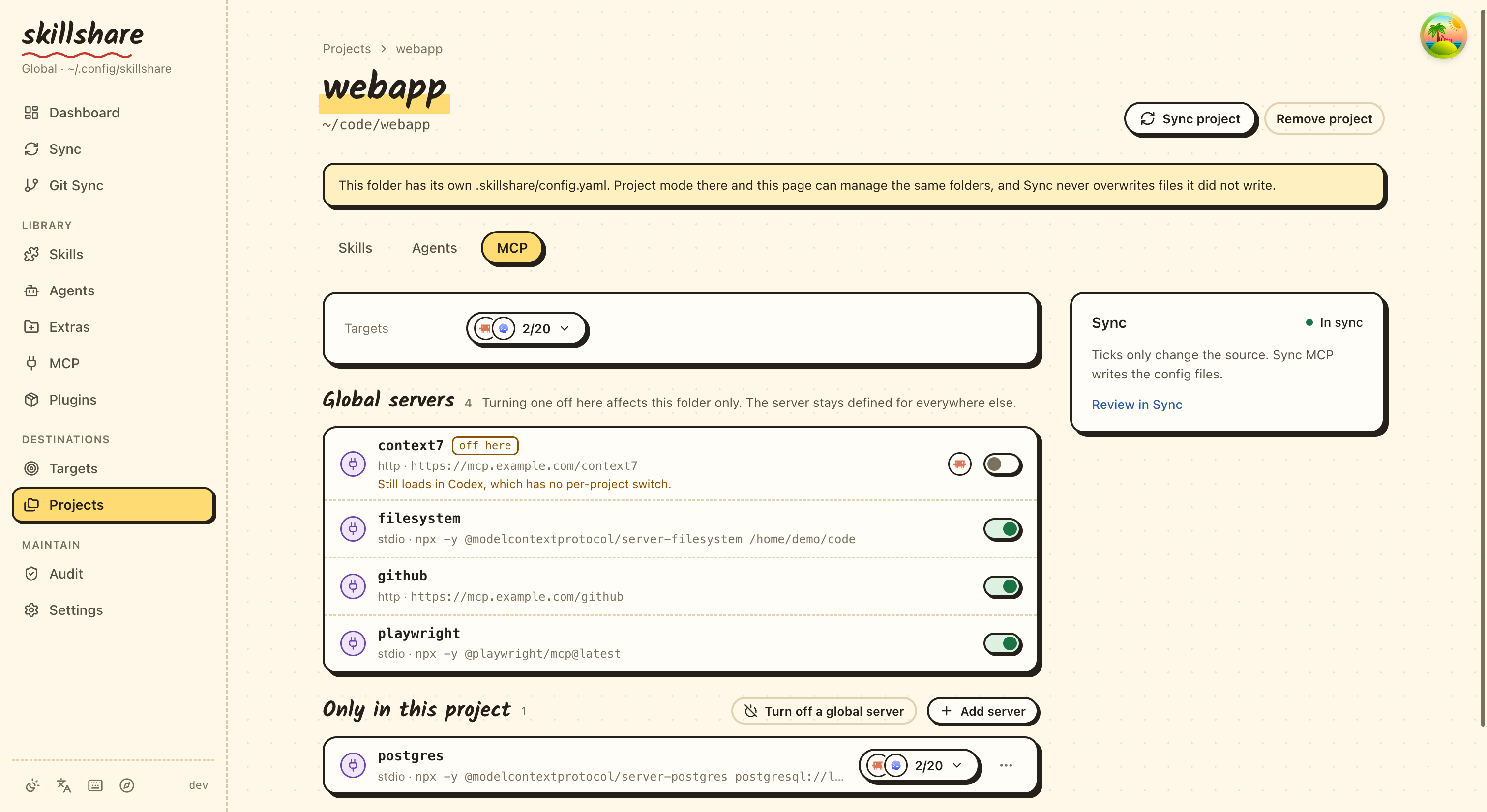
- Add project takes the folder and its targets. Tick MCP to list the folder under
mcp.projectsas well. - The MCP tab lists every global server with a switch. Turning one off saves a
disabledentry withouttargets, so it follows the project's targets as described above; turning it back on removes the entry. Below it are the servers that exist in that project only. - A server that is off shows the logos of the Agents it is off in. When one of the
project's Agents has no per-project switch, the row says that the server still loads
there. An entry that lists its own
targets, which differ from the project's, gets Match the project: it saves the entry again withouttargets. - Sync MCP in the tab's Sync box writes the whole MCP plan, and says how many of its changes are outside this project. Sync project, at the top of the project page, writes only this project's skills, agents and MCP.
- Defaults, at the bottom of the MCP page, edits
mcp.targets. - When the project's own Agent files hold servers Skillshare does not manage, the tab says so above the lists, with Import. See below.
Saving rewrites only the project you changed. Other projects keep their YAML as written,
anchors and aliases included, and a folder written as ~/work/app keeps its ~. As
everywhere on this page, saving changes config.yaml only; Sync writes the files.
Limits:
mcp.projectsis read from the global config only. A project config that contains it is refused.- No command edits it:
skillshare mcp addmanagesmcp.serversand leavesmcp.projectsas written. Edit it inconfig.yaml, or in the dashboard. - A
disabledentry for Claude Code is written to~/.claude.json, the same file the global servers go to, because that is where Claude Code keeps its per-project off list. The servers themselves are left as they are. - If a folder also has its own
.skillshare/config.yamlmanaging the same entry, the plan reports a conflict rather than overwriting it.
Check servers before an Agent starts them
skillshare mcp check
skillshare mcp check docs github --json
skillshare mcp check --no-dns
mcp check answers "will this server work as synced?" for every server in the
source, or only the named ones. In the global config it also checks the servers of
every root under mcp.projects,
with each Agent's rules and sync state read for that root. It is read-only: it never starts a server, sends an
HTTP request, runs a command or writes a file, unless you add --live.
| Check | Level |
|---|---|
A fromEnv variable in env, headers or bearerToken is unset or empty | error |
A local server's command is not found on PATH (a leading ~/ is expanded) | error |
A remote server's host does not resolve through DNS (3-second limit; skip with --no-dns) | warning |
| An Agent's rule refuses the server, such as a name Claude Code reserves | error |
An Agent's entry conflicts with the source, as in sync mcp --dry-run | error |
| An Agent's entry is not written or not updated yet | warning |
The server has targets: [] and is kept in Skillshare only | info |
| A selected Agent cannot hold part of the server's tool policy | warning |
Variable values are never printed. The command exits with 1 when any error is found and 0 otherwise; warnings never fail it. An unknown server name is an error that lists the known names. A name selects every server of that name, globally and in each project, and the known names include project servers.
In the terminal, a project server's heading names its project:
✓ docs
  · claude: in sync
✗ docs  (project ~/work/app)
  ✗ command no-such-mcp-binary was not found on PATH
  ! claude: not synced yet; run skillshare sync mcp
With --json, the report has this shape:
{
  "servers": [
    {
      "name": "docs",
      "ok": false,
      "findings": [
        { "level": "error", "check": "env", "target": "", "message": "bearerToken reads DOCS_TOKEN, which is not set", "subject": "DOCS_TOKEN" },
        { "level": "warning", "check": "sync", "target": "claude", "message": "not synced yet; run skillshare sync mcp" }
      ]
    },
    {
      "name": "docs",
      "project": "/home/me/work/app",
      "ok": true,
      "findings": [
        { "level": "info", "check": "sync", "target": "claude", "message": "in sync" }
      ]
    }
  ],
  "summary": { "errors": 1, "warnings": 1 }
}
check is one of env, command, url, dns, client-rule, sync, targets,
tools or live.
target names the Agent or account, and is empty when the finding is about the
server itself.
subject names the variable, command or host for env, command and dns
findings, the name a server reports for a successful live probe, and the resource
metadata URL of a live sign-in warning; it is omitted otherwise.
project is the server's mcp.projects root as an absolute path (a leading ~ is
expanded), and is omitted for a global server. summary counts every server in the
report, project servers included.
In the dashboard, the Check button in the MCP page's Sync box runs the same check.
It appears once there are servers to check, runs only when clicked, shows a summary
above the server list and each error or warning under its server, and keeps nothing
after the page reloads. The MCP page lists global servers only, so its summary and rows
leave project servers out, even one that shares a global server's name. A project's
MCP tab has its own Check in its Sync box, which reports that project's own servers. Variables are read from
the terminal that started skillshare ui.
Probe servers live
skillshare mcp check --live
skillshare mcp check docs --live --timeout 30s --json
--live runs the static checks first, then contacts each selected server that has no
error. A server with an error, or a disabled entry, is not contacted; an info finding
says why.
- Local (stdio) servers. Skillshare starts
commandwithargsin your current environment, plus the server'senvwith eachfromEnvvalue read from your shell. A project server starts in its project folder, a global server in the current directory. This runs the server's code on your machine as an Agent would, so use--liveonly for servers you trust. Skillshare sendsserver/discover. A server that answers with an error that is not an MCP protocol error, or does not answer within a third of the timeout, is treated as older than MCP 2026-07-28 and gets theinitializehandshake instead. Skillshare then callstools/listto count the tools and stops the server: it closes stdin, then sends SIGTERM and then SIGKILL to the server's process group. On Windows it terminates the process. - Remote (Streamable HTTP) servers. Skillshare POSTs
server/discoverwith the server'sheadersandbearerToken, and reads a JSON or an SSE response. A400,404or405without an MCP error falls back toinitialize. A401is a warning, "sign-in required", with the resource metadata URL from theWWW-Authenticateheader. Skillshare never signs in or starts OAuth.
Each server has one time limit for its whole probe: 10 seconds, or --timeout (such as
30s or 1m). Up to four servers are probed at once. --timeout without --live is
an error.
| Result | Level |
|---|---|
| The server answered: its name and version, protocol version and number of tools | info |
| A remote server needs sign-in (HTTP 401) | warning |
| The command could not start, exited early, or did not answer in time | error |
| A protocol error, an unsupported protocol version, or any other HTTP status | error |
When a local server fails, the message ends with up to five lines of its stderr. The
values of env, headers and bearerToken are removed from every message; values
shorter than four characters are left as they are. Values are passed as written:
Skillshare never runs a Pi !command value and does not read piOptions. The exit
code follows the same rule, 1 when any error is found. --live writes no file and no
operation log entry.
With --json, a server that answered also gets a live object:
{
  "name": "docs",
  "ok": true,
  "findings": [
    { "level": "info", "check": "live", "target": "", "message": "responds: docs-server 1.4.0, protocol 2026-07-28, 12 tool(s)", "subject": "docs-server" }
  ],
  "live": { "protocolVersion": "2026-07-28", "serverInfo": { "name": "docs-server", "version": "1.4.0" }, "tools": 12 }
}
serverInfo is what the server says about itself; nothing verifies it. live is
omitted when the server was not probed or the probe failed.
The dashboard's Check button runs the static check only. The dashboard probes a
server in one place: Load tools in the server dialog's
Tools section, which starts the server once, as the dialog's
fields describe it, to list its tools. With --json, live also holds toolNames, the names tools/list returned.
Stop managing a server
skillshare mcp remove docs --keep-files
This removes docs from the source and forgets which Agent entries Skillshare wrote
for it. No Agent file changes. From then on those entries are yours: sync neither
removes nor updates them. --keep-files cannot be combined with --sync. The
terminal remove wizard offers it as Stop managing, and so does the dashboard's
remove dialog, on the MCP page and in a project's MCP tab.
Only the scope you remove it from changes. Stopping a global server leaves a project's server of the same name managed, and the other way round. To manage an entry again, import it.
Servers Skillshare does not manage
The dashboard reads the Agent config files of the current scope, and of every folder
under mcp.projects, for servers that this source does not define and no Skillshare
configuration manages. When it finds some, a note above the server list says how many
and in which Agents. Import opens the import with the first of those Agents
selected. A project's MCP tab shows the same note for that project's own files;
its import reads the project's file and saves the servers to that project. Entries
with nothing to connect to, such as Goose's built-in extensions, are not counted.
Take over an entry an Agent already has
When you add a server under a name an Agent file already uses, sync does not
overwrite that entry. The plan reports a conflict, existing entry is not managed,
and writes no files until you choose for that entry:
- Import it from that Agent:
skillshare mcp import NAME --from CLIENT, or the conflict's Import from button in the dashboard, such as Import from Cursor. An entry that matches the source is adopted as it is. For a conflict in a folder undermcp.projects, the button reads that folder's file and imports into that project. - Replace it with the source definition: Replace with source in the dashboard, or
--replaceon import.
Serve skills over MCP
skillshare mcp serve                                  # stdio, every enabled skill
skillshare mcp serve --target claude                  # only the skills the claude target selects
SKILLSHARE_MCP_TOKEN=change-me skillshare mcp serve --http 0.0.0.0:8765 \
  --tls-cert cert.pem --tls-key key.pem               # HTTPS for other machines
mcp serve is a read-only MCP server for an Agent that cannot reach the folder
your skills sync to, such as one on a disposable VM or behind an MCP gateway. It
implements the Skills extension
(io.modelcontextprotocol/skills, SEP-2640): skills/list, skills/get and
resources/read. Each skill is one entry whose URI follows its source path, such as
skill://_team/tools/pdf/SKILL.md, with its full frontmatter and every file with a
sha256 digest and size. Agents on your own machine already receive skills through
sync; connecting them to mcp serve as well shows each skill twice.
Most Agents do not support the Skills extension yet (see below), so the server also offers
two tools: list_skills lists names, descriptions and URIs (query narrows them; one
answer lists at most 200), and read_skill reads a SKILL.md or another file of a skill,
and for a SKILL.md lists the skill's other files. Any Agent that uses MCP tools can read
skills this way, including through a gateway that passes tools on. A client that declares
the Skills extension loads skills natively and is not offered the tools, so it does not
see each skill twice. Content read through a tool is ordinary text to the Agent: its own
skill approval does not apply.
- Selection. Without
--target, every enabled skill is served.--target NAMEapplies that target'sinclude/excludefilters and frontmattertargets, whatever its sync mode; skills always come from the source. A target with skills turned off is an error. - Skipped skills. A skill is skipped, with a warning on stderr, when its
SKILL.mdis a link or does not begin with its frontmatter, when itsnamebreaks the Agent Skills naming rules or differs from its directory name (for example afterinstall --name), when its description is missing or over 1,024 characters or itscompatibilityis empty or over 500, when it has more than 512 files or 16 MiB, or when it contains a nested skill that is not served.skillshare mcp serve --checklists those skills and their reasons, with the same selection flags, and exits without serving. - Changes. The source is read again at most every 5 seconds, so
install,update,enableanddisableshow up without a restart. Results carryttlMs: 5000. - Scope. Global by default, wherever the server is started.
-pserves the project in the current directory. - Transport. stdio by default, for a gateway or Agent that starts the command.
--http ADDRserves Streamable HTTP. A non-loopback address requiresSKILLSHARE_MCP_TOKENand HTTPS through--tls-certand--tls-key, so the token never crosses the network in plain text; when the token is set, every request must sendAuthorization: Bearer <token>. To use a TLS proxy instead, bind a loopback address such as127.0.0.1:8765and let the proxy terminate TLS. - Safety. Only files in a skill's manifest can be read, and reads stay inside the
skill directory. Links and
.gitare neither listed nor served. Nothing is executed or written. With--http, cross-origin browser requests are refused.
To connect an Agent, add the server like any other and sync it. On the machine that runs the Agent:
skillshare mcp add skillshare --target codex --sync -- skillshare mcp serve --target codex
In the dashboard, Add server → Skillshare builds the same command (with -p in
project mode) from a choice of skills; tick the Agent, save and sync. Editing that server
opens the same tab.
For an Agent on another machine, run mcp serve --http with a certificate where the
skills are and point a remote server at it. Keep the token in an environment variable:
mcp:
  servers:
    skillshare:
      url: https://skills-host:8765/
      bearerToken: { fromEnv: SKILLSHARE_MCP_TOKEN }
      targets: [codex]
Loading skills natively needs the Skills extension. As of October 2026 the common coding Agents do not have it yet, so they use the tools: Codex, Cursor, VS Code, Goose and Pi have no support, and Claude Code includes support that is not switched on by default. Only a few clients such as mcpc, fast-agent and MCP Inspector do, some in part. The SEP's list of prototype hosts, such as a Codex fork, does not mean the released Agents support it. The extension support matrix lists the current clients.
To check the server itself, MCP Inspector 2.6.0 or later reads every skill, compares its frontmatter and checks each file's digest:
npx @modelcontextprotocol/inspector --cli skillshare mcp serve --method skills/list --verify
Safety and limitations
- JSONC comments and unrelated settings are preserved. Changed owned entries
are replaced as a unit, so comments inside those entries may change. Only the
fields Skillshare writes are compared and replaced; Agent-specific fields such
as timeouts are kept.
Defaults an Agent fills in, such as
"type": "stdio", an emptyenvor header name case, are not changes. Turning a managed server off withenabled: falseordisabled: trueis reported as a conflict. Pi and OMP are exceptions: changingenabledalone on a connection entry does not cause an ownership conflict. A sourcepiOptions.enabledstill takes precedence on sync. - A preview stays valid while an Agent rewrites unrelated settings in the same
file, as Claude Code does with
~/.claude.json. Only a change to that file's MCP entries requires a new preview. - Codex and Grok edits support ordinary
[mcp_servers.NAME]tables and their subtables. Updated entries stay in place, and CRLF line endings are kept. Inline/dotted MCP definitions must be converted to tables before writing; they are rejected without modifying the file. - Native file symlinks, malformed files and duplicate JSON properties block
writes. A symlinked Skillshare
config.yamlis written through to its target. In a project, a project config orsources.mcpfile that resolves outside the project is refused instead. File permissions are preserved; new native files, ownership records and backups use private permissions. - An entry that already matches the source is reported as unchanged without a
write, for example after pulling a teammate's change. If this configuration
did not manage it before, such as when you tick an Agent after importing from
it, the plan shows
adopt: sync records the entry as managed without changing the file, and from then on removing the server or unticking that Agent removes it. A server you turned off in the Agent itself stays yours. A different unmanaged entry requires import or an explicit per-entry replacement; another Skillshare configuration's ownership cannot be overridden while that configuration file still exists. If that file is gone it can never release the entry, so the conflict says the entry is left over, names the file, and takes it over on an explicit import or replacement, in the terminal and from the conflict in the dashboard. A file that only cannot be read, such as one on a drive that is not mounted, still counts as the owner being there. - The dashboard's MCP settings work only when the browser opens the dashboard by
localhostor an IP address. Through a domain name, including a reverse proxy, MCP requests return 403, because DNS rebinding attacks always use a domain name. - Credentials use environment references; no secret store, OAuth session sync,
continuous health monitoring, package installation, gateway, registry or plugin sync.
mcp check --liveis the only command that starts or calls a configured server;mcp serveruns Skillshare's own read-only skills server. - VS Code Insiders, custom profiles, remote workspaces and legacy SSE are not supported in this version.
- VS Code does not currently substitute
${env:VARIABLE}insideheaders(microsoft/vscode#336232), so header andbearerTokenreferences synced to VS Code reach the server unresolved until that is fixed. - Local operation records live under the Skillshare state directory's
mcp/:state.json,pending.jsonduring a write, andbackups/(the newest 20 per Agent file). Do not share this directory as a portable manifest.
Tool policy
tools says which of a server's tools reach the model. Write it once on the server;
Skillshare translates it into each Agent's own fields on sync.
mcp:
  servers:
    github:
      command: github-mcp
      targets: [pi, codex, copilot, opencode]
      tools:
        allow: [get_*, search_code, list_issues]
        deny: [get_secret]
skillshare mcp add github --target pi --target codex --tools-allow 'get_*,search_code' --tools-deny get_secret -- github-mcp
skillshare mcp edit github --tools-allow ''          # clear the allow list
skillshare mcp import github --from claude --target pi --tools-deny get_secret
| Field | Meaning |
|---|---|
allow | When set, only the matching tools stay |
deny | The matching tools are removed, even when allow matches them |
Entries in allow and deny are tool names, where * matches any characters. Other
wildcards (? [ ] { }), spaces and commas are refused, and so is a name listed twice.
A deny list that removes every tool allow keeps is an error. tools cannot be set
on a disabled entry. The two flags work with mcp add, mcp edit and
mcp import; lists are separated by commas, and an empty value clears that part.
How Pi offers the tools is not part of the policy: it is Pi's exposure, set in
piOptions.
What each Agent receives
Not every Agent can hold every part of a policy. Skillshare writes what the Agent's documented format supports and names the rest; it never drops a part silently.
| Agent | What is written | Not applied |
|---|---|---|
| Pi | toolExposure with denied tools hidden, then allowed tools, then "*": "hidden" when allow is set | Nothing |
| Codex | enabled_tools and disabled_tools, exact names only. Codex applies disabled_tools after enabled_tools | * patterns in allow; * patterns in deny that cannot be folded into an exact allow list |
| Copilot CLI | tools: the exact allowed names minus the denied ones, otherwise ["*"] | * patterns in allow; deny when allow does not list exact names, since Copilot has no deny list |
| OpenCode, Kilo Code | Nothing | All of it. Both filter tools only in a top-level permission map keyed by <server>_<tool>, outside the server's entry |
| Every other Agent | Nothing | All of it |
In Pi an exact tool name beats any pattern, so an allowed exact name that a denied
pattern matches is left out of toolExposure. Allowed tools get the server's
piOptions.exposure, or Pi's default codemode when that is unset or hidden: hidden with
allow therefore means only the allowed tools are visible.
The unapplied parts appear in three places:
-
The sync plan, as a warning line per Agent that lists the servers:
! tool policy not applied for opencode: allow, deny (github)With
--jsonthe same text is in the plan'snotices. -
mcp check, as atoolswarning for each Agent. -
The dashboard, in the server dialog's Tools section and in View what each Agent gets. The dashboard shows no page-level notice for these, or for the retired Pi settings below.
Codex's enabled_tools and disabled_tools are managed fields: clearing the policy
removes them, and editing them by hand in a Skillshare-owned entry shows up as a
conflict. Import reads Codex's enabled_tools/disabled_tools and Copilot's tools
back into tools. Pi's toolExposure becomes tools only when writing that policy
next to the server's exposure gives exactly the same toolExposure; otherwise it stays
in piOptions, with a warning. exposure always stays in piOptions.
Tools in the dashboard
The server dialog has a Tools section after the targets, for every server except a
disabled entry, and is always shown. Beside the title, an info
icon explains the section and a summary shows All tools, the policy (such as
Only 1 allowed, 2 excluded), or 9 of 14 selected once the tools are loaded.
- The box under the title holds the tool list. Before loading it offers Load tools,
which starts the server once with the settings in the dialog, saved or not, using the
same probe as
mcp check --live. It runs only when clicked and saves nothing, so it also works for a new server. A failure is described in plain words, with the raw error in the info tooltip beside it, and the button becomes Retry. Changing the command, URL, or their settings afterwards clears the loaded list. - Once loaded, each tool has a checkbox, and a ticked tool reaches the model. Unticking a
tool adds its exact name to
deny. Ticking it removes that name fromdeny, and adds it toallowwhen a non-emptyallowleaves it out. A tool that adenypattern removes cannot be ticked; its tooltip names the rule. The search box filters the list, Select all and Select none act on the rows it shows, and the refresh button loads the list again. - The Exclude rules row at the bottom of the box takes
*patterns and names the server does not list; type one and press Enter. Whenallowhas entries, an Allow only row above it does the same forallow. Before the tools are loaded, every saved entry is shown there. A bad name, or a deny list that removes every allowed tool, is shown in the dialog and blocks Save. - Below that, the dialog says what each selected Agent will get: which ones follow the list as it is, what an Agent that follows part of it will do (for example, Copilot CLI still offers unticked tools because it has no deny list), and which ones cannot filter tools.
The server row shows a tag with the policy in words, such as Tools: 2 tools excluded,
and View what each Agent gets warns per Agent about the parts it does not apply.
Oh My Pi (OMP)
omp is a separate client from Pi. Skillshare writes OMP's native mcpServers
map, with explicit type: stdio or type: http and ${VARIABLE} environment
references. It never writes into .pi/, Claude or Codex configuration on OMP's behalf.
Server names must be at most 100 characters.
skillshare mcp add docs --url https://example.com/mcp --target omp -g --sync --no-tui
skillshare mcp import docs --from omp --target omp -g --replace --dry-run --json
Sync preserves $schema, disabledServers, enabledServers and unrelated servers.
It also keeps native per-server fields such as enabled, timeout, instructions,
requestIdFormat, cwd, auth and oauth when updating an existing connection.
These fields are not piOptions: Pi-only settings are never sent to OMP. Import
warns about native fields that cannot be represented by the portable model; keep
them in OMP's file. The portable model supports stdio and Streamable HTTP, not
OMP's legacy SSE transport; unsupported imports are refused rather than converted.
disabledServers wins over enabledServers and an entry's enabled value.
Sync does not remove a user denylist entry to activate a server. Import refuses
servers hidden by disabledServers or enabled: false, unless the latter is
force-enabled by enabledServers. JSON with OMP's schema or enable/disable lists
is recognized as OMP when pasted into the importer.
OMP can run env/header values beginning with ! as shell commands. Skillshare
refuses exporting such literals or importing those credentials and never executes
them. Prefer {fromEnv: VARIABLE} in the source and ${VARIABLE} in native JSON.
A same-name bare env reference, such as "TOKEN": "TOKEN", imports as fromEnv;
set the variable before connecting, since the portable reference has no literal
fallback. Other client-specific interpolation needs conversion before import.
Global MCP honors PI_CODING_AGENT_DIR; project MCP remains .omp/mcp.json.
Since Pi uses the same environment variable, syncing both into the same file is
refused. Use separate directories or explicit account targets. Named-profile
and PI_CONFIG_DIR automatic path selection are not managed: declare a target
with agent: omp and config_dir: ~/.omp/profiles/work/agent for that profile.
Account targets are global-only; project definitions use omp.
After editing or syncing, run /mcp reload in OMP, then /mcp list to inspect the
source and connection status. Approval and OAuth login remain OMP's responsibility.
Pi
Pi ≥ 0.99.0 includes built-in MCP,
and it is the only way Skillshare writes MCP servers for Pi. The third-party
pi-mcp-adapter and pi-mcp-extension are no longer supported as sync destinations.
| Scope | File |
|---|---|
| Global | ~/.pi/agent/mcp.json (PI_CODING_AGENT_DIR is honored) |
| Project | .pi/mcp.json |
Personal servers and servers with credentials belong in ~/.pi/agent/mcp.json. Use
.pi/mcp.json only for servers the project needs, in trusted projects. Project entries
replace the entire global entry with the same name. Skillshare edits files directly
with preview and backup; it does not trust projects, launch servers, install
extensions, or authorize OAuth.
skillshare mcp add docs --url https://example.com/mcp --target pi --tools-deny 'delete_*' --pi-options '{"exposure":"deferred","timeout":120}' --no-tui
skillshare sync mcp --dry-run
skillshare sync mcp
mcp:
  servers:
    docs:
      url: https://example.com/mcp
      targets: [pi]
      tools:
        deny: [delete_*]
      piOptions:
        exposure: deferred
        timeout: 120
Native output uses command/args or url, with ${NAME} environment references.
After a sync, run /reload or start a new Pi session, and use /mcp to inspect
connections and authorize OAuth. For simple Pi-only setup, pi mcp add edits the global
file; add -l for a project. pi mcp list checks connections by starting every enabled
server; pi mcp login NAME requires user approval.
Pi 1.0.4 adds --no-mcp to disable MCP for one run; --tools filters MCP tools
only when an entry starts with mcp__. Check these launch flags if a synced server
is unavailable.
Pi server names allow only letters, digits, _ and -, and Pi reads names that differ
only in - and _ as one server, so sync refuses the second. A Pi project entry replaces the
global entry of the same name; to turn off a global server in one project, see
Turn off a global server in one project.
Since Pi 1.0.1, /mcp in Pi can add a project entry with only enabled, exposure or
toolExposure, which overrides the global server of that name. It is not a server, so
import skips it. A disabled entry writes the same override, so one that is exactly
{"enabled": false} is no conflict. Once sync has written the switch, Pi settings you add
to it in Pi, such as exposure, are kept as on any Pi entry sync manages; turning the
server back on in Pi is a conflict. If the project defines a server with the same name, or
an override sync did not write differs from the disabled entry, sync reports a conflict
until you replace the entry or remove the override in Pi.
Other Pi settings
piOptions holds the other per-server fields of Pi's built-in MCP. Only Pi receives
them.
oauth.clientRegistrationacceptsdcr(Pi default) orcimd(Pi 1.0.1+). Withcimd, omitclientIdandclientName; acallbackUrlmust use HTTP onlocalhostor127.0.0.1with path/callback. The authorization server must support CIMD for public clients.exposureacceptscodemode(Pi default),codemode-deferred(an older name forcodemode),deferred,directorhidden.toolExposuremaps tool names or wildcard patterns to one of those values: an exact name wins, then the first matching pattern. Skillshare keeps the pattern order through import and JSON/YAML conversion.exposurealso decides how the tools atoolsallow list keeps are offered. PrefertoolsovertoolExposure, since it also reaches other Agents; a server cannot set bothtoolsandtoolExposure.timeout(positive seconds),cwd,enabled,oauthandauthare validated. Unknown fields, such asdescription, are passed through.auth: {provider: NAME}sends that provider's/logintoken as the bearer token. It needs an httpsurl, or http on localhost, and only works in global mode, because Pi reads it only from its global file.oauth.authServerMetadataUrl(Pi 1.0+) must use https, or http on localhost, because Pi trusts that document instead of discovery. Pi 1.0 keeps OAuth sign-ins per server name and URL, so renaming a server or changing itsurlneeds a new sign-in in Pi.- Connection fields belong in the main form.
directTools,includeTools,excludeToolsand the otherpi-mcp-adaptersettings are refused, because Pi's built-in MCP does not read them; usetoolsinstead. - Top-level
settingsandautoEnableCodemodeare not server options: edit them directly in Pi; sync preserves them. - Keep credentials in environment references. Literal
!commandvalues in portable env/headers are refused, and so are command values anywhere inpiOptions, including non-secret fields such asoauth.clientId.
Clearing the JSON, or removing a field from it, removes the field from Pi's file on the next sync when Skillshare wrote it and it is unchanged. A field you added in Pi yourself stays. A field Skillshare wrote that was changed in Pi since blocks the sync until you import it.
skillshare mcp edit docs --pi-options '{"timeout":60}' --no-tui
skillshare mcp edit docs --pi-options '{}' --no-tui
In the dashboard, the Pi block of the server dialog has Tool exposure and Other Pi
settings. The info icons beside Pi settings and Tool exposure explain them, and
a link beside Pi settings opens Pi's MCP documentation. The dialog flags
pi-mcp-adapter fields in Other Pi settings before you save. Tool exposure stays
editable while the Tools section has a setting; only toolExposure in Other Pi
settings is refused then, because tools writes it. On the server row, the Pi chip
shows the exposure in a few words, such as through code for codemode.
Upgrading Pi from 0.22
Before the first sync after upgrading, check two things in Pi:
- Pi 0.99.0 or later. Skillshare now writes Pi's servers only to
mcp.json, which Pi reads through its built-in MCP, added in 0.99.0. Older Pi does not read it, so the servers stop loading until Pi is updated. Skillshare does not check Pi's version. - Remove
pi-mcp-adapterorpi-mcp-extensionfrom Pi if either is still installed. Pi's MCP documentation says an installed extension that registers/mcpreplaces the built-in MCP.pi-mcp-extensionalso readsmcp.jsonitself, andpi-mcp-adapter3.0.0 and later no longer read it, so the servers Skillshare moved do not load through the adapter.
When a sync moves servers off either extension, sync mcp --dry-run, sync mcp and
--json say so once:
! Pi's built-in MCP needs Pi 0.99.0 or later; on older Pi these servers stop loading until Pi is updated. If pi-mcp-adapter or pi-mcp-extension is still installed in Pi, remove it, because it can take the place of Pi's built-in MCP
It appears when the sync removes an entry Skillshare wrote to mcp-adapter.json,
rewrites an entry it wrote for pi-mcp-extension, or finds settings only the extensions
read (piExtension: pi-mcp-adapter or pi-mcp-extension, directTools, and the
piOptions fields listed below). After that sync, it is gone.
0.23.0 removed the Pi mode choice (piExtension: builtin, pi-mcp-adapter,
pi-mcp-extension), the piOptionsPrune switch and directTools. An older config
still loads. sync mcp --dry-run and sync mcp print a warning for each kind of retired setting they found, naming the servers, for example:
! Pi now uses its built-in MCP; the next sync updates the config: context7, local (shop)
A server found only under a project in mcp.projects shows the project folder in
parentheses.
What the next sync does:
| Before 0.23.0 | After the sync |
|---|---|
piExtension: builtin | The key is removed; nothing else changes |
piExtension: pi-mcp-extension | The key is removed. The entry already lived in mcp.json, so it is rewritten there in the built-in format |
piExtension: pi-mcp-adapter | The key is removed. The server is written to mcp.json, and the entry Skillshare wrote in mcp-adapter.json is removed. Entries you added to mcp-adapter.json yourself are left as they are |
piOptionsPrune | The key is removed. Sync always removes cleared fields that Skillshare wrote and that are unchanged (above) |
directTools on a server | true → piOptions.exposure: direct; "search" → deferred; a list of names → piOptions.toolExposure with those tools direct |
mcp.directTools, or a project's directTools under mcp.projects | The default is written into each server that reaches Pi and has no value of its own, as above. A project's false overrides the global value |
piOptions.includeTools / excludeTools | tools.allow / tools.deny; a directTools next to them still becomes piOptions.exposure |
Other pi-mcp-adapter fields in piOptions: approveTools, auth as a string (Pi's own auth object is kept), bearerToken, bearerTokenEnv, bearerTokenStore, caFile, debug, exposeResources, idleTimeout, inheritEnv, lifecycle, protocolVersion, requestHeadersCommand, requestTimeoutMs, searchKeywords, socket, tasks, toolPrefix, trace | Removed, because Pi's built-in MCP does not read them |
A directTools, includeTools or excludeTools that would overwrite an exposure the
server already sets, or that is not a list of tool names, is dropped with its own
warning.
The first sync that applies these changes also saves the Skillshare config without
the retired settings: config.yaml, or the file sources.mcp names. Before writing,
it keeps the old file in the file history
with the reason migrate, and prints one line per file:
→ Updated config.yaml for 0.23.0 (backup: <path of the saved version>)
This happens on skillshare sync mcp, skillshare sync --all (even when no Agent file
changes) and the dashboard's sync. --dry-run and previews write nothing. If saving the
config fails, the Agent files are already written and the config stays as it was; the
error says so, and the next sync tries again. After a successful save the warnings are
gone.
Removed flags now fail with a message:
| Flag | What to use |
|---|---|
--pi-extension | Drop it. Pi always uses its built-in MCP |
--pi-options-prune | Drop it. Sync always removes unchanged fields Skillshare wrote earlier |
--direct-tools | --pi-options '{"exposure":"direct"}' for every tool, or --pi-options '{"toolExposure":{"TOOL":"direct"}}' for single tools in Pi |
skillshare mcp import --from pi still reads pi-mcp-adapter's mcp-adapter.json,
next to Pi's mcp.json, so you can bring servers across. When both files define a
server, mcp.json wins. Sync writes the server to Pi's mcp.json; in
mcp-adapter.json it only removes entries it wrote there before 0.23.0. Its directTools, includeTools and
excludeTools are converted as above, and other adapter-only fields are left out with
a warning. In the dashboard, Import from a target lists the two Pi files as
separate sources.