extras
Manage non-skill resources (rules, commands, prompts, etc.) that are synced alongside skills.
Overview
Extras are additional resource types managed by skillshare — think of them as "skills for non-skill content." Common use cases include syncing AI rules, editor commands, or prompt templates across tools.
Each extra has:
- A name (e.g.,
rules,prompts,commands) - A source directory — configurable via
extras_sourceor per-extrasource, defaults to~/.config/skillshare/extras/<name>/(global) or.skillshare/extras/<name>/(project) - Targets where files are synced to; shared memory notes can start with no targets
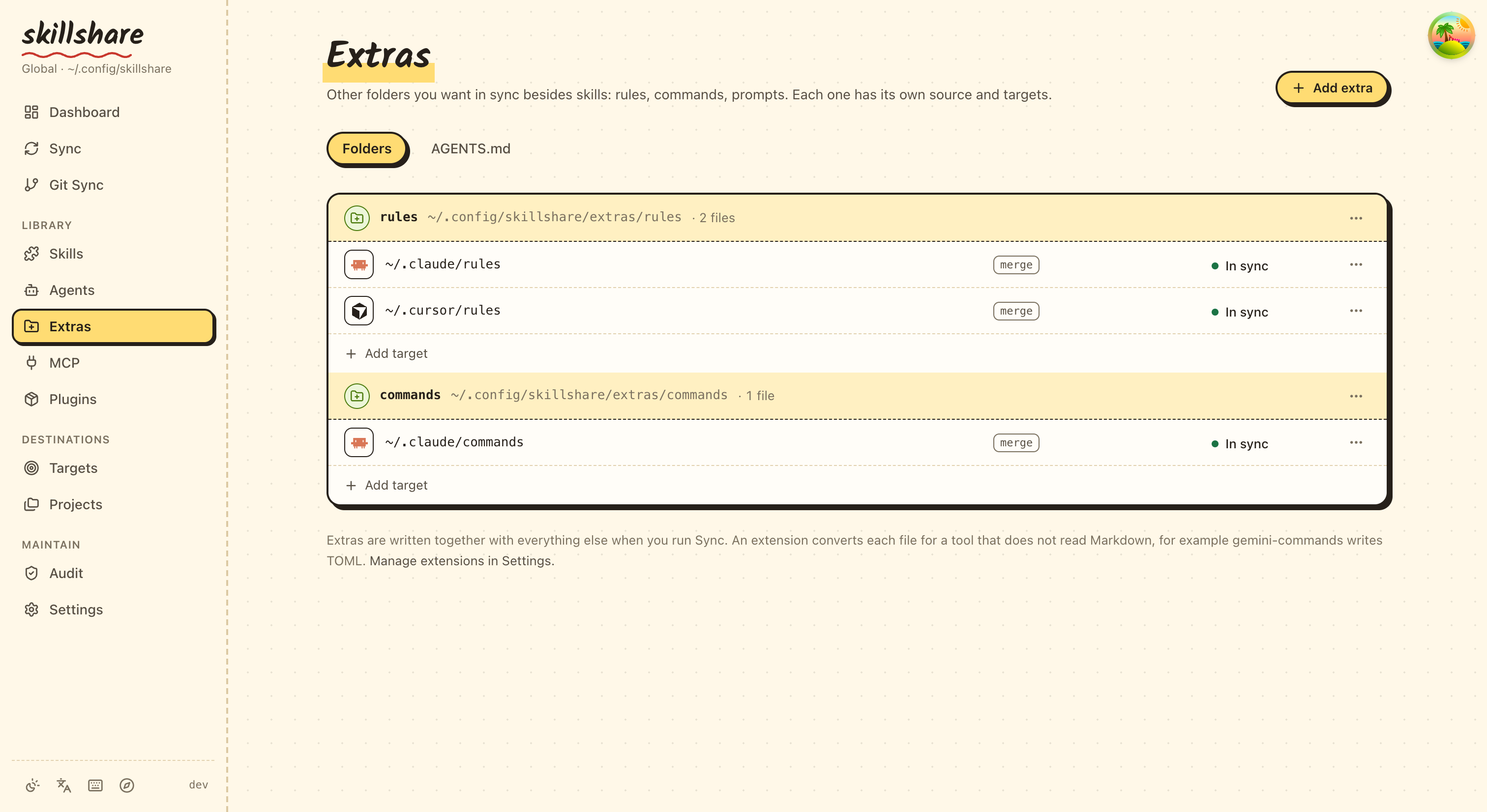
In the dashboard, Extras → Folders & files lists each extra with its targets and mode:
Commands
extras memory
Manage shared, user-owned Markdown notes in an extra named memory. The files
work with any text editor. Native agent automatic memory remains separate.
For an illustrated setup, see Share memory across your AI tools.
skillshare extras memory init -g
skillshare extras memory write decisions.md --from ./decisions.md -g
skillshare extras memory list --search architecture --json -g
skillshare extras memory show decisions.md --json -g
skillshare extras memory instructions -g
skillshare extras memory instructions --update-mode active -g
| Subcommand | Behavior |
|---|---|
init | Register a folder extra without targets and create missing INDEX.md and LEARNED.md templates; preserve existing files and configuration |
list | List notes; --search <text> searches filenames and content, case-insensitively |
show <note.md> | Print a note; --json includes its version hash |
write <note.md> | Read UTF-8 content from --from <file> or --from - (stdin) |
instructions | Print a scope/hash-marked guidance block; project sources inside the repo use paths relative to the project root. Both modes read INDEX.md at the start of each task. --update-mode passive (default) asks agents to point out facts worth keeping and update notes only on request; --update-mode active has them save such facts here instead of in the tool's own memory and propose notes they are unsure of |
delete <note.md> --version <hash> | Back up and delete the last read version; reject stale or missing versions |
All subcommands accept --json, --global / -g, --project / -p, and
--help / -h. Scope is auto-detected when omitted. The default source is
~/.config/skillshare/extras/memory/ globally and .skillshare/extras/memory/
in a project. Existing sources.extras, global extras_source, and per-extra
source overrides follow the same resolution as other extras.
For a new note, omit --version. To update one, pass the version returned by
show --json:
version=$(skillshare extras memory show decisions.md --json -g | jq -r '.version')
skillshare extras memory write decisions.md --from ./updated.md --version "$version" -g
A changed or existing note is rejected when its version does not match.
Changed files are backed up before replacement and can be inspected with
backup files. Notes must be UTF-8 Markdown files at most 1 MiB,
with relative paths. Hidden files, hidden folders, and symbolic links inside
the source are excluded. The starter INDEX.md links to LEARNED.md, whose template records
the date, context, conclusion, and evidence for a lesson. Both are user-editable;
re-running init only creates missing files and never regenerates existing ones.
SOUL.md and USER.md are not created by default. These templates do not enable
automatic learning or native memory integration.
In the dashboard, Extras → Memory offers nested creation, search, a collapsible
folder tree, and Preview / Source, Copy path, Edit, Move or rename, Delete note, and
History. Files over 1 MiB or containing non-UTF-8 data remain listed as
unsupported; valid notes still work. Move or rename accepts a new relative
.md path, creates missing folders, preserves content and permissions, and rejects
existing destinations or stale versions. The source is backed up at its old path;
Markdown links are not rewritten automatically. Keep the reading-guidance entry
point INDEX.md at the source root.
Saves check the last-read version. A conflict preserves your draft and displays the latest saved content for comparison. Save my draft requires confirmation, uses the refreshed version, and backs up the saved file before replacement. Deletion also checks the saved version, requires confirmation, and backs up the note. History and the post-deletion restore link open Backup Files filtered to the note's absolute path.
New note offers Link from INDEX.md, checked by default when the index is readable. It appends a link at EOF with a version check and backup. A failed index update leaves the new note intact. Add to INDEX links an unindexed note. Broken links show a warning; deleted-note links must be removed manually. CLI writes do not add index links.
Use Connect to agents, select tools and an update mode (passive or active)
for each, Review changes, then Apply changes. Tools reading the same file
share one block and switch modes together; a configured tool's mode can be
changed through the same review.
The dashboard appends or updates a managed reading-guidance block in the existing
instruction file or shared source, preserving all other content and assignments.
The review shows file changes, shared readers, and known character-limit warnings.
It backs up existing files and rejects stale plans. Intact outdated blocks can be
updated after review; manually modified or malformed blocks are preserved.
Unsynced or unreadable instruction files are skipped.
Configured reports current guidance in a tool's reading chain; it does not
report a read. Copy verification prompt supplies a prompt for a fresh agent
session: read INDEX.md and a relevant note, report the full path and a temporary
verification value added by the user. Inspect the actual read tool event manually;
there is no guaranteed read telemetry.
Copy guidance is the manual fallback. Choose a mode and paste the block into an instruction file the agent reads; Open AGENTS.md provides the existing editor. In project mode, a source inside the repository is relative to the project root, regardless of the instruction file's location. An external override or global source uses an absolute path; regenerate guidance after relocating it. This does not enable native automatic memory, automatic learning, or Obsidian integration. Connection and index actions above are dashboard workflows.
extras init
Create a new extra resource type.
# Interactive wizard
skillshare extras init

# CLI flags
skillshare extras init <name> --target <path> [--target <path2>] [--mode <mode>]

# Single-file extra
skillshare extras init <name> --file <filename> [--as <filename>] --target <path> [--source <dir>] [--mode <mode>]
The wizard asks What do you want to sync? after the name: Folder or Single file.
Options:
| Flag | Description |
|---|---|
--target <path> | Target directory path (repeatable) |
--file <filename> | Sync only this file from the source directory, making a single-file extra. A plain file name, without / or \ |
--as <filename> | File name to write at every target (default: the --file name). Requires --file |
--mode <mode> | Sync mode: merge (default), copy, or symlink; import, prepend and append only with --file |
--flatten | Sync files from subdirectories directly into the target root (cannot be used with symlink mode or --file) |
--source <path> | Custom source directory for this extra (overrides extras_source and default; relative to the project root in project mode) |
--force | Overwrite if extra already exists |
--no-tui | Skip interactive wizard, use CLI flags only |
--project, -p | Create in project config (.skillshare/) |
--global, -g | Create in global config |
--source accepts a custom source in global mode. In project mode it must be a relative path inside the project root.
Examples:
# Sync rules to Claude and Cursor
skillshare extras init rules --target ~/.claude/rules --target ~/.cursor/rules

# Use a custom source directory
skillshare extras init rules --target ~/.claude/rules --source ~/company-shared/rules

# Overwrite an existing extra with new targets
skillshare extras init rules --target ~/.cursor/rules --force

# Project-scoped extra with copy mode
skillshare extras init prompts --target .claude/prompts --mode copy -p

# Sync agents flat (tools like Claude Code only discover flat files)
skillshare extras init agents --target ~/.claude/agents --flatten

# Sync one file, renamed at the target
skillshare extras init pi-prompt --file system.md --as APPEND_SYSTEM.md \
  --source ~/dotfiles/prompts --target ~/.pi/agent
extras init only writes the config. It does not create the source file and does not sync. For a single-file extra it prints the full source and target file paths:
  Source    ~/dotfiles/prompts/system.md
  Target    ~/.pi/agent/APPEND_SYSTEM.md · merge

✓ Created extra pi-prompt (single file)

Next
  skillshare sync extras  sync it
If the source file does not exist yet, the source line ends with (not found) and the last line reads Create the source file, then run 'skillshare sync extras'.
extras list
List all configured extras and their sync status. Launches an interactive TUI by default.
skillshare extras list [--json] [--no-tui] [-p|-g]
Options:
| Flag | Description |
|---|---|
--json | JSON output (includes source_type: per-extra / extras_source / default, and a per-target extension field when set) |
--no-tui | Disable interactive TUI, use plain text output |
--project, -p | Use project-mode extras (.skillshare/) |
--global, -g | Use global extras (~/.config/skillshare/) |
Interactive TUI
On a TTY, extras list opens an interactive view: extras on the left, and the selected extra's targets and files on the right. From there you can create, remove, sync and collect extras, and change a target's mode or flatten setting. The keys are listed at the bottom of the screen.
The TUI can be permanently disabled with skillshare tui off.
Plain text output
When TUI is disabled (via --no-tui, skillshare tui off, or piped output):
$ skillshare extras list --no-tui
rules  ~/.config/skillshare/extras/rules · 2 files
✓ ~/.claude/rules  merge
✓ ~/.cursor/rules  copy

codex-agents  ~/.config/skillshare/agents · 3 files
✓ ~/.codex/agents  extension: codex-agents

2 extras
For a single-file extra, the source and each target show the full file path instead of the directory.
A synced row shows only its icon, path, and mode; non-synced rows append a status word (drift, modified, not synced, no source). Targets with a transform extension are labeled extension: <name> in place of the sync mode (their underlying mode is always copy).
extras source
Show or set the global extras_source directory. This is the default parent directory where extras source files are stored.
skillshare extras source            # show current value
skillshare extras source <path>     # set new value
Without arguments, displays the current extras_source path (with (default) if auto-detected). With a path argument, updates extras_source in the global config.
This command is global-only. Project mode always uses .skillshare/extras/ and does not support extras_source.
Examples:
# Show current extras_source
skillshare extras source

# Set to a shared directory
skillshare extras source ~/company-shared/extras
Operating on an existing extra
Change a target's sync mode or flatten setting, or add/remove a target via extras <name>. Run
skillshare sync extras afterward to apply mode, flatten, or added-target changes. --remove-target --prune also restores or removes managed files immediately.
skillshare extras <name> --mode <mode> [--target <path>] [-p|-g]
skillshare extras <name> --flatten | --no-flatten [--target <path>]
skillshare extras <name> --add-target <path> [--as <filename>] [--mode <mode>] [--flatten] [-p|-g]
skillshare extras <name> --remove-target <path> [--prune] [-p|-g]
skillshare extras <name> --help
Options:
| Flag | Description |
|---|---|
--mode <mode> | New sync mode: merge, copy, or symlink; import, prepend and append only for single-file extras |
--flatten | Enable flatten (sync subdirectory files into target root) |
--no-flatten | Disable flatten |
--add-target <path> | Add a new target to the extra |
--as <filename> | Target filename for --add-target (single-file extras only; defaults to file) |
--remove-target <path> | Remove a target from the extra (config-only by default) |
--prune | With --remove-target: also delete skillshare-managed files under that target. For a single-file extra it restores the target file instead |
--target <path> | Target directory path (required for --mode with multi-target extras; --flatten/--no-flatten applies to all targets when omitted) |
--project, -p | Use project-mode extras (.skillshare/) |
--global, -g | Use global extras (~/.config/skillshare/) |
Examples:
# Change rules mode (single target — auto-resolved)
skillshare extras rules --mode copy

# Specify target explicitly (required for multi-target extras)
skillshare extras rules --mode copy --target ~/.claude/rules

# Enable / disable flatten on all targets at once
skillshare extras agents --flatten
skillshare extras agents --no-flatten

# Add a new target to an existing extra (then sync)
skillshare extras rules --add-target ~/.cursor/rules
skillshare extras commands --add-target ~/.config/opencode/commands --mode copy
skillshare extras personal --add-target ~/.claude --as CLAUDE.md --mode import

# Remove a target (leaves synced files in place)
skillshare extras rules --remove-target ~/.cursor/rules

# Remove a target and delete its synced files
skillshare extras rules --remove-target ~/.cursor/rules --prune
Also available via the TUI (e key) and Web UI (mode dropdown and flatten checkbox on each target).
extras remove
Remove an extra from configuration.
skillshare extras remove <name> [--force] [-p|-g]
Source files are kept. Directory extras leave synced targets in place. For a single-file extra, targets are restored before the config entry is removed; if restoration fails, the entry is kept so you can retry.
extras collect
Collect local files from a target back into the extras source directory. Files are copied to source and replaced with symlinks. Copy-mode targets keep their files as regular copies. Collect is not supported for single-file extras.
Files that already exist in source are skipped. Use --force to overwrite them with the target version — for example, to pull back edits made directly in a copy-mode target. Files whose content already matches source are still skipped.
skillshare extras collect <name> [--from <path>] [--force] [--dry-run] [-p|-g]
Options:
| Flag | Description |
|---|---|
--from <path> | Target directory to collect from (required if multiple targets) |
--force, -f | Overwrite files that already exist in source |
--dry-run | Show what would be collected without making changes |
Example:
# Collect rules from Claude back to source
skillshare extras collect rules --from ~/.claude/rules

# Preview what would be collected
skillshare extras collect rules --from ~/.claude/rules --dry-run

# Pull target edits back over existing source files
skillshare extras collect rules --force
Sync Modes
| Mode | Behavior |
|---|---|
merge (default) | Per-file symlinks from target to source |
copy | Per-file copies |
symlink | Entire directory symlink |
import | Single-file extras only: an @<source file> line in the target file |
prepend / append | Single-file extras only: the source's content in a managed block at the top or end of the target file |
On Windows without Developer Mode, merge copies each file instead of linking it, and sync prints file links need Windows Developer Mode; copying instead. extras list and status then show the target as copy. The copies are tracked, so later syncs update and prune them, keep your own files, and replace them with links once file links work. See Windows troubleshooting.
Identical local files are reported as local preserved; sync extras does not suggest --force for them. They remain local files, not managed links.
When switching modes (e.g., from merge to copy), the next sync automatically replaces existing symlinks with the new mode's format. No --force is needed — symlinks are always safe to replace. Regular files created locally require --force to overwrite.
Flatten
Some AI tools (e.g., Claude Code's /agents) only discover files at the top level of their config directory — they do not recurse into subdirectories. If your extras source uses subdirectories for organization, synced files will be invisible to the tool.
The flatten option solves this by syncing all files directly into the target root, regardless of their subdirectory depth in the source:
extras:
  - name: agents
    targets:
      - path: ~/.claude/agents
        flatten: true
Behavior:
flatten: true:source/curriculum/tactician.md→target/tactician.mdflatten: false(default):source/curriculum/tactician.md→target/curriculum/tactician.md
Filename collisions: When two files in different subdirectories share the same name (e.g., team-a/agent.md and team-b/agent.md), the first file wins (sorted alphabetically by path). Subsequent collisions are skipped with a warning.
Constraints:
- Only works with
mergeandcopymodes — cannot be used withsymlinkmode collectplaces newly collected files in the source root (no subdirectory mapping for new files)
Extension transforms
Some tools do not read markdown. Gemini CLI expects TOML commands; Codex CLI expects TOML agents. The extension field on a target runs an external script that converts each source file into the target's native format during sync.
extras:
  - name: commands
    targets:
      - path: .claude/commands        # no extension — synced as-is
      - path: .gemini/commands
        extension: gemini-commands           # transform during sync
Resolution — a bare name resolves under the extensions directory (~/.config/skillshare/extensions/<name> global, .skillshare/extensions/<name> project); a path (./x.sh, /abs/x) is used directly.
Copy semantics — extension implies copy mode. Setting mode: merge or mode: symlink on a target with an extension is an error.
One-way — transforms run source → target only. extras collect skips extension targets.
Overwrite safety — generated output follows the same conflict rules as copy mode. A leftover symlink at an output path is replaced automatically; an existing regular file or directory you created locally is left untouched and skipped unless you pass --force (with --force, a conflicting directory is replaced wholesale by the generated file).
Extension layout
A single executable, or a directory with a manifest:
.skillshare/extensions/gemini-commands/
├── extension.yaml
├── convert.js        # mapping rules you edit
└── md-toml.js        # helper for markdown/frontmatter/TOML
extension.yaml:
run: ["node", "convert.js"]      # explicit command (argv), execed directly
output_ext: toml                  # .md → .toml; omit to keep the source extension
description: "Markdown command → Gemini CLI TOML"
A bare single-file executable (no manifest) is execed directly (relies on the shebang on Unix) and keeps the source extension. Transforms that rename the extension must use the directory form.
Execution contract
- Source file content is passed on stdin; the script writes the converted content to stdout.
- Environment variables:
SS_SRC_PATH,SS_REL_PATH(path relative to the source root — useful for Gemini's/namespace:commandnaming),SS_TARGET_DIR,SS_MODE. - A non-zero exit code marks that file as failed; other files continue.
Cross-platform
The mechanism is cross-platform; whether an extension runs depends on its interpreter. Because run is an explicit command, an extension written for node or python3 works on Windows, macOS, and Linux. Pure bash scripts only run where a shell is available (Unix, or Windows with Git Bash). Node is the preferred interpreter for reference extensions because it ships uniformly across platforms.
Reference extensions
The skillshare repo ships example extensions under extensions/ (gemini-commands, codex-agents, opencode-agents). Copy one into your extensions directory and adapt it — they are references, not installed automatically. Each reference extension keeps convert.js short so you edit only the field mapping; md-toml.js handles reading markdown, parsing simple frontmatter, and writing TOML.
Recipe: Codex agents
Codex CLI expects TOML agents rather than markdown. Because a source can point at any directory, you can reuse your agents source as an extras source and transform it with codex-agents:
extras:
  - name: codex-agents
    source: ~/.config/skillshare/agents   # reuse the agents source
    targets:
      - path: ~/.codex/agents
        extension: codex-agents
skillshare sync extras converts each <agent>.md into ~/.codex/agents/<agent>.toml, mapping frontmatter name, description, and model and folding the markdown body into developer_instructions (other frontmatter keys are dropped). The Codex custom agent schema requires name, description, and developer_instructions, so the reference transform reports a clear error when the resolved name, description, or Markdown body is blank. No separate copy of the agents is needed.
Agent targets can also take extension directly, without an extra. See Converting agents with an extension.
Recipe: shared instructions across agents
The web dashboard can set this up for you, with a preview, backups and a restore button: see Share one AGENTS.md across your tools. It uses single-file extras instead of a directory.
Most coding agents now read an AGENTS.md for standing instructions, but each
one keeps its user-level copy in a different directory. One extra with several
targets distributes a single source file to all of them:
skillshare extras init instructions \
  --target ~/.codex \
  --target ~/.config/opencode \
  --target ~/.claude \
  --target ~/.gemini \
  --no-tui
Put your AGENTS.md in the resolved source directory
(~/.config/skillshare/extras/instructions/ by default), then
skillshare sync extras.
| Agent | Global path | Reads AGENTS.md |
|---|---|---|
| Codex CLI | ~/.codex/AGENTS.md | Directly |
| opencode | ~/.config/opencode/AGENTS.md | Directly |
| Claude Code | ~/.claude/AGENTS.md | Through a CLAUDE.md import |
| Antigravity | ~/.gemini/AGENTS.md | Through a GEMINI.md import |
Two agents read a fixed filename of their own at the user level, so each needs a one-line file next to the synced one. Write these once; skillshare never touches them again:
@AGENTS.md
@AGENTS.md
Claude Code reads CLAUDE.md and not AGENTS.md, and the import is the approach
its memory documentation recommends for
sharing one file with other agents. Antigravity keeps its global rules in
~/.gemini/GEMINI.md and resolves a relative @filename against the rules file's
own directory, so the same one-liner picks up the synced AGENTS.md. The
~/.gemini target also covers Antigravity CLI, which reads the same global file.
Keep the source file named AGENTS.md. A neutral name such as memory.md syncs
just as well but stops being read: Codex concatenates AGENTS.md files by name
and has no import syntax, so it recognises the file only by that name.
Because targets are directories, every target receives each file under its source name. Keep the source directory to the files you want everywhere — an extra file lands in all four targets.
This recipe shares the instructions you write, not the memory an agent writes for itself. Agents store their own learnings in private formats — a directory of Markdown for Claude Code, a database for Codex, non-file storage for Cursor — and those are not portable by copying files between targets.
Single-file extras
An extra with file syncs one file from its source directory instead of the whole
directory. Each target receives <path>/<as>, where as defaults to the file
name. Use it for any tool that reads one file at a fixed path. For example, Pi
appends ~/.pi/agent/APPEND_SYSTEM.md to its system prompt; keep that text as
system.md in your dotfiles and link it in:
extras:
  - name: pi-prompt
    source: ~/dotfiles/prompts     # project mode: relative to the project root
    file: system.md                # ~/dotfiles/prompts/system.md
    targets:
      - path: ~/.pi/agent
        as: APPEND_SYSTEM.md       # ~/.pi/agent/APPEND_SYSTEM.md becomes a link
The same extra from the CLI:
skillshare extras init pi-prompt --file system.md --as APPEND_SYSTEM.md \
  --source ~/dotfiles/prompts --target ~/.pi/agent
skillshare sync extras
--as on extras init applies to every target. To use a different file name at
one target, add it separately:
skillshare extras pi-prompt --add-target ~/Documents/prompts --as pi-system.md
The dashboard's shared AGENTS.md files are single-file extras too, and can mix plain links, renames and imports:
extras:
  - name: personal
    file: AGENTS.md                # ~/.config/skillshare/extras/personal/AGENTS.md
    targets:
      - path: ~/.codex             # ~/.codex/AGENTS.md becomes a link
      - path: ~/.gemini
        as: GEMINI.md              # ~/.gemini/GEMINI.md becomes a link
      - path: ~/.claude
        as: CLAUDE.md
        mode: import               # ~/.claude/CLAUDE.md keeps its content and imports the file
| Mode | Target file |
|---|---|
merge (default) or symlink | A symlink to the source file (a copy on Windows without Developer Mode) |
copy | A copy of the source file |
import | Your file, with an @<source file> line in a managed block at the top |
prepend / append | Your file, with the source's content in a managed block at the top or end |
import keeps the @ line between <!-- skillshare:instructions:begin --> and
<!-- skillshare:instructions:end --> and never changes the rest of the file. Use it
only for tools that follow @ imports, such as Claude Code.
prepend and append are for tools that do not: the source's content is written
between <!-- skillshare:extra src="<source file>" sha256=… --> and
<!-- /skillshare:extra -->, and the rest of the file is never changed. When the
source changes, the next sync replaces the block in place. The hash records what
skillshare wrote: a block edited by hand is not synced, and extras list shows the
target as modified until the edit is copied back to the source or the block is
removed. Several shared files can share one target this way, each in its own block.
Rules:
- A target file in link or
copymode can belong to only one shared file. It cannot also hold another shared file'simportline or block. fileandasmust be plain file names, without/or\.as,import,prependandappendrequirefile.flattenandextensioncan't be used with a single-file extra.- When a target already has a different regular file or a symlink, sync saves it
and replaces it without
--force. A directory in the way is skipped. - A target that was
modifiedafter it was linked is replaced as well; the edited file is kept as a drift backup, not as the restore point. extras listshowsmodifiedwhen a linked target was replaced by a regular file with different content, a managed copy was edited, or aprepend/appendblock was edited by hand.- Sync never overwrites a block edited by hand: it stops with an error for that target until the edit is copied back to the source or the block is removed.
- Switching between modes removes what the previous mode wrote, so a target never
holds the same source twice:
importdrops a block,prepend/appenddrop the@line and rebuild the file instead of keeping acopy, and a link orcopyrecords the file without the block as its restore point. Switching betweenprependandappendmoves the block. Several blocks on the same side keep their order. - A
prepend/appendtarget is refused when its file links to another extra's source (the block would be written into that source), when anappendtarget ends inside an open code fence, and when the source has a line that reads as a block marker. A block whose markers were damaged by hand stops sync, mode changes and restore for that target until the markers are repaired. See common errors. - Switching a target from
merge,symlinkorcopytoimportrestores its last own content fromimportmode, including empty content. If it has not usedimport, the pre-attach content is used. The import block is added, and an edited copy is kept as a drift backup first. extras removeand--remove-target --prunerestore each target file: the link, copy, import line or block goes, and the file or symlink that was there before the first sync comes back (or no file, if there was none). Amodifiedtarget is kept as a drift backup first. For a block, only that block goes; the rest of the file stays, and a file the block created is removed only when nothing else is left in it.--remove-targetwithout--pruneleaves the single-file target in place and unmanaged, and forgets its restore point. Later syncs do not clean it up; attaching it again records a new restore point.extras collectis not supported. To keep an edit made in a target, copy it back to the source file. For a sharedAGENTS.md, Collect into (or Collect block into for a block) on the dashboard's AGENTS.md tab does this for you.
In the dashboard, single-file extras whose file is AGENTS.md appear on the
AGENTS.md tab; all other single-file extras appear on Folders & files. There,
Add extra offers Folder or Single file, each target has a File name,
and a single file can use merge, copy, import, prepend or append. A single file's Name
follows its file name without the extension (APPEND_SYSTEM.md gives
APPEND_SYSTEM) until you type one. The dashboard does not edit
the file's content; edit the source file directly.
One folder, several files
Several single-file extras can share one source directory. Create one extra per
file; files in the folder that no extra names are not synced:
extras:
  - name: pi-system
    source: ~/dotfiles/pi
    file: system.md
    targets:
      - path: ~/.pi/agent
        as: APPEND_SYSTEM.md
  - name: pi-agents
    source: ~/dotfiles/pi
    file: agents.md
    targets:
      - path: ~/.pi/agent
        as: AGENTS.md
skillshare extras init pi-system --source ~/dotfiles/pi --file system.md \
  --as APPEND_SYSTEM.md --target ~/.pi/agent
skillshare extras init pi-agents --source ~/dotfiles/pi --file agents.md \
  --as AGENTS.md --target ~/.pi/agent
In project mode, source is relative to the project root and must stay inside it;
absolute paths are rejected:
skillshare extras init review -p --source .skillshare/extras/prompts \
  --file review.md --target .claude/commands
skillshare extras init plan -p --source .skillshare/extras/prompts \
  --file plan.md --target .claude/commands
In the dashboard, a single file in the shared extras folder has a Source folder field. It defaults to the extra's name; enter another extra's folder to keep both files in one folder.
Backups are kept in skillshare's state directory
(~/.local/state/skillshare/extras/backups/ on macOS and Linux), the last 10 per
file. Drift backups go to extras/backups/<id>/drift/ there, where <id> is derived
from the target file's path; restore never uses them. To list or restore any saved
version, use backup files.
Directory Structure
~/.config/skillshare/
├── config.yaml          # extras config lives here
├── skills/              # skill source
└── extras/              # extras source root
    ├── rules/           # extras/rules/ source files
    │   ├── coding.md
    │   └── testing.md
    └── prompts/
        └── review.md
Configuration
In config.yaml:
# Optional: set a global default extras source directory
extras_source: ~/my-extras

extras:
  - name: rules
    source: ~/company-shared/rules    # optional per-extra override
    targets:
      - path: ~/.claude/rules
      - path: ~/.cursor/rules
        mode: copy
  - name: agents
    targets:
      - path: ~/.claude/agents
        flatten: true                  # sync subdirectory files flat
  - name: prompts
    targets:
      - path: ~/.claude/prompts
Source Resolution Priority
The source directory for each extra is resolved with three-level priority:
- Per-extra
source(highest) — exact path, used as-is extras_source—<extras_source>/<name>/- Default —
~/.config/skillshare/extras/<name>/(global) or.skillshare/extras/<name>/(project)
The extras list --json output includes a source_type field (per-extra, extras_source, or default) indicating which level resolved the path.
extras_source is automatically set to the default path (~/.config/skillshare/extras/) when you run skillshare init or create your first extra with extras init. To change it later, use skillshare extras source <path>.
Syncing
Extras are synced with:
skillshare sync extras        # sync extras only
skillshare sync --all         # sync skills + extras together
See sync extras for full sync documentation including --json, --dry-run, and --force options.
Workflow
# 1. Create a new extra
skillshare extras init rules --target ~/.claude/rules --target ~/.cursor/rules

# 1b. Or with a custom source directory
skillshare extras init rules --target ~/.claude/rules --source ~/my-rules

# 1c. Reconfigure an existing extra (overwrite)
skillshare extras init rules --target ~/.cursor/rules --force

# 2. Add files to the source directory
# (edit the resolved source dir — check with: skillshare extras list --json)

# 3. Sync to targets
skillshare sync extras

# 4. List status (source_type shows where each extra's source is resolved from)
skillshare extras list

# 5. Collect a file edited in a target back to source
skillshare extras collect rules --from ~/.claude/rules

# 6. Change the global extras source directory
skillshare extras source ~/company-shared/extras
See Also
- sync — Sync extras to targets
- status — Show extras file and target counts
- Configuration — Extras config reference