Share one AGENTS.md across your tools
Each AI tool reads its standing instructions from its own file. Claude Code reads
CLAUDE.md, Gemini CLI reads GEMINI.md, and Codex and most other tools read
AGENTS.md, each in its own folder. The web dashboard (skillshare ui) shows these
files, lets you edit them, and can give several tools one shared AGENTS.md.
This is a dashboard feature. There is no separate CLI command. A shared AGENTS.md
is stored as an extra, so
skillshare sync extras also keeps it in place.
To use shared instructions to read one folder of memory notes, follow the Memory walkthrough, with screenshots from creation through connecting Claude and Codex.
See what a target reads
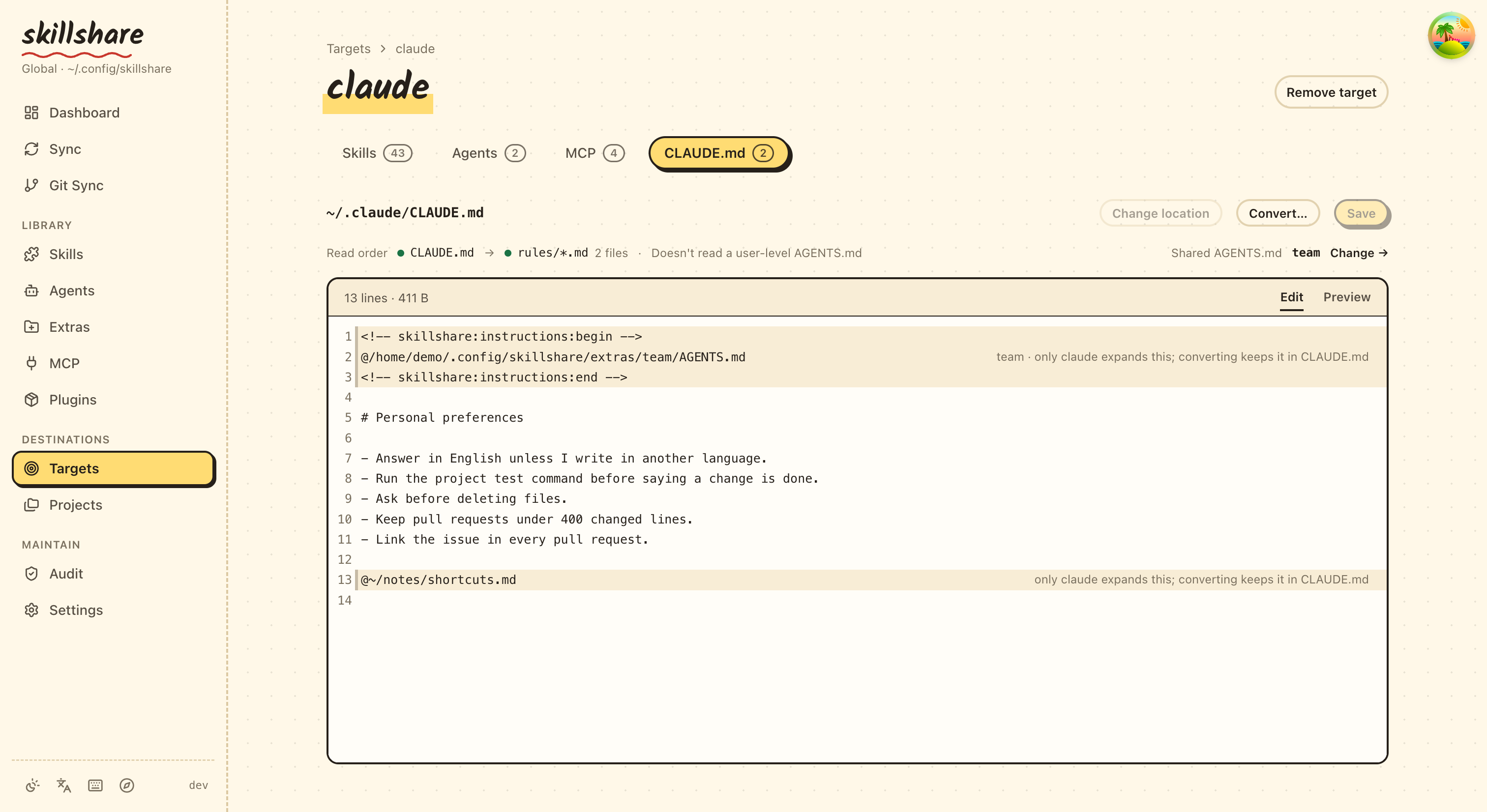
Open a target from Targets. Its page has a tab named after the file that target reads: CLAUDE.md for claude, GEMINI.md for gemini, AGENTS.md for codex. The tab shows, from top to bottom:
- The file's path and size, with Change location (see below), Convert… and Save.
- One line with the Read order: the files the tool loads, in the order it loads
them, each marked as loaded or not (hover to see
loaded,skippedormissing). For claude this includes the Markdown files in~/.claude/rules/once that folder has any (an empty rules folder isn't listed), and a note that claude doesn't read a user-levelAGENTS.md. In global mode the same line ends with Shared AGENTS.md: the shared files this target uses, and a link to choose them. - An editor for the file, with Edit and Preview tabs; Preview renders
the Markdown, including unsaved edits. Long lines wrap. Save (or ⌘S / Ctrl+S) backs up the
current file first, and creates the file if it doesn't exist yet. Lines that start
with
@are imports, and only some tools expand them; other tools read them as plain text. The editor tints these lines and adds a short note saying which tool expands them. - Warnings. Windsurf reads only the first 6,000 characters of its global rules file.
If the file is a link to a shared AGENTS.md, the editor is read-only. Editing it
would change every target that uses the shared file, so edit that file on its own
page instead. A link you made yourself, such as one into your dotfiles, stays
editable, and saving writes through to the file it points to.
skillshare knows these instruction files:
| Target | User-level file | Project file | Follows @ imports |
|---|---|---|---|
| amp | ~/.config/amp/AGENTS.md | AGENTS.md | No |
| antigravity | ~/.gemini/GEMINI.md (the same file as gemini) | AGENTS.md | No |
| antigravity-cli | ~/.gemini/GEMINI.md (the same file as gemini) | AGENTS.md | No |
| claude | ~/.claude/CLAUDE.md, plus ~/.claude/rules/ | CLAUDE.md, or AGENTS.md when there is no CLAUDE.md, plus .claude/rules/ | Yes |
| cline | ~/.agents/AGENTS.md (the same file as universal), plus ~/Documents/Cline/Rules/ | AGENTS.md, plus .clinerules/ | No |
| codebuddy | ~/.codebuddy/CODEBUDDY.md, plus ~/.codebuddy/rules/ | CODEBUDDY.md, or AGENTS.md when there is no CODEBUDDY.md, plus .codebuddy/rules/ | Yes |
| codex | ~/.codex/AGENTS.md | AGENTS.md | No |
| commandcode | ~/.commandcode/AGENTS.md | AGENTS.md | Yes |
| copilot | ~/.copilot/copilot-instructions.md | .github/copilot-instructions.md | No |
| cursor | None: user rules live in Cursor's settings | AGENTS.md | No |
| deepagents | ~/.deepagents/agent/AGENTS.md | .deepagents/AGENTS.md | No |
| devin | ~/.config/devin/AGENTS.md | AGENTS.md | No |
| droid | ~/.factory/AGENTS.md | AGENTS.md | No |
| firebender | ~/.firebender/AGENTS.md | AGENTS.md | No |
| forgecode | ~/forge/AGENTS.md | AGENTS.md | No |
| gemini | ~/.gemini/GEMINI.md | GEMINI.md | No |
| goose | ~/.config/goose/.goosehints | AGENTS.md | No |
| grok | ~/.grok/AGENTS.md, plus ~/.grok/rules/ | AGENTS.md, plus .grok/rules/ | No |
| iflow | ~/.iflow/IFLOW.md | IFLOW.md | Yes |
| junie | ~/.junie/AGENTS.md | AGENTS.md | No |
| kiro | ~/.kiro/steering/AGENTS.md | AGENTS.md | No |
| omp | ~/.omp/agent/AGENTS.md | AGENTS.md | Yes |
| opencode | ~/.config/opencode/AGENTS.md | AGENTS.md | No |
| pi | ~/.pi/agent/AGENTS.md | AGENTS.md | No |
| pochi | ~/.pochi/README.pochi.md | AGENTS.md | No |
| qoder | ~/.qoder/AGENTS.md, plus ~/.qoder/rules/ | AGENTS.md, plus .qoder/rules/ | Yes |
| qwen | ~/.qwen/QWEN.md | QWEN.md | Yes |
| roo | ~/.roo/rules/AGENTS.md | AGENTS.md | No |
| rovodev | ~/.rovodev/AGENTS.md | AGENTS.md | No |
| universal | ~/.agents/AGENTS.md | AGENTS.md | No |
| verdent | ~/.verdent/VERDENT.md | AGENTS.md | No |
| vibe | ~/.vibe/AGENTS.md | AGENTS.md | No |
| warp | ~/.agents/AGENTS.md (the same file as universal) | AGENTS.md | No |
| windsurf | ~/.codeium/windsurf/memories/global_rules.md (first 6,000 characters) | AGENTS.md | No |
| zed | ~/.config/zed/AGENTS.md | AGENTS.md | No |
A second account of
Claude, Codex or Pi reads the same file inside its own config directory, for example
~/.claude-work/CLAUDE.md. For any other target, you
tell skillshare which file it reads.
Tools that read skills through universal
Many tools read skills from ~/.agents/skills, the universal target's folder.
Codex and Goose use it as their skills folder, and tools such as Gemini CLI, Pi and
OpenCode also read it next to their own. If you sync skills to them through
universal and don't add them as targets, they still read their own instruction
file, not ~/.agents/AGENTS.md: for example, Codex reads ~/.codex/AGENTS.md and
Gemini CLI reads ~/.gemini/GEMINI.md.
In global mode, universal's AGENTS.md tab lists the files it manages on the
left: universal's own file first, then these tools when they are installed, which
skillshare tells by their folder, such as ~/.codex or ~/.gemini. Each row shows
whether the file exists yet. Pick one to see and edit its own file; the choice is
kept in the URL as ?tool=<name>. They also appear in the shared
AGENTS.md list under Extras, so you can connect a shared file to them. Their
file location can't be changed, because they have no target entry to store it in.
A tool that isn't listed can be added as its own target.
Some tools, such as Cline and the Warp Agent CLI, read ~/.agents/AGENTS.md itself.
Codex, Gemini CLI and Pi read their own file.
Convert CLAUDE.md to AGENTS.md
Click Convert… on the target's tab to make its content readable by other tools.
The button appears when the file has content to move and isn't already an
AGENTS.md. The dialog previews every change before anything is written, and each
file it changes or removes is backed up first.
| Method | Result | Available |
|---|---|---|
| Move to AGENTS.md, CLAUDE.md imports it (recommended) | The content moves to AGENTS.md. CLAUDE.md keeps only an @AGENTS.md line and the lines only claude understands | Tools that follow @ imports (claude) |
| Rename CLAUDE.md to AGENTS.md | CLAUDE.md is removed and claude reads AGENTS.md in its place | Projects only, for a tool that reads AGENTS.md when its own file is missing. Refused while a CLAUDE.local.md exists, or while CLAUDE.md uses a shared AGENTS.md (the next sync would bring CLAUDE.md back) |
| Copy to AGENTS.md | Both files stay and are edited separately, so they will drift apart | Always |
The file names follow the target: for gemini the dialog offers Copy to AGENTS.md only. With the first method, Leave the @import lines in CLAUDE.md is on by default, because other tools would read those lines as plain text.
At user level, no other tool reads an AGENTS.md in ~/.claude. So in global mode
the first method also offers Make it a shared AGENTS.md other targets can use,
which is on by default:
- New one…: name a new shared
AGENTS.md; the name starts as the target's name, such asclaude. The content moves into it andCLAUDE.mdimports it. - An existing shared file: the content goes at the end of that file, and
CLAUDE.mdthen imports it.
With sharing off, the content goes to ~/.claude/AGENTS.md and CLAUDE.md gets an
@AGENTS.md line.
When no other shared file is available, Convert… asks only for the new name; the shared-file picker appears only when there is another file to choose.
Share one AGENTS.md in global mode
Go to Extras and open the AGENTS.md tab. New shared AGENTS.md asks for a
name (letters, digits, - and _) and where to start:
- Empty file: write the first version in the dialog.
- Move claude's file here (or any other target that has a file and doesn't use a shared one yet): the target's current file moves into the shared file, and the target uses the shared file from then on. The original is backed up first.
Each shared file is stored at <extras source>/<name>/AGENTS.md, by default
~/.config/skillshare/extras/<name>/AGENTS.md.
How a target uses a shared file depends on whether it follows @ imports:
-
Import targets (claude, and tools you mark as supporting
@import) keep their own content and can use several shared files at once. skillshare adds one line per shared file inside a managed block at the top of the file and never changes anything outside the block. Claude has no user-levelAGENTS.md, so this block is how it reads a shared one:~/.claude/CLAUDE.md<!-- skillshare:instructions:begin -->
@/Users/you/.config/skillshare/extras/personal/AGENTS.md
<!-- skillshare:instructions:end -->
Your own Claude-only instructions stay here. -
Other targets (codex, gemini and the rest) get one shared file by default. Their file is backed up, then replaced by a link (symlink) to the shared file. On Windows without Developer Mode, file links aren't available, so it is replaced by a copy instead. To keep the target's own content, switch the target to
prependorappendin the mode picker: the shared file's content is then written into a managed block at the top or end of the target's file, and the file can hold several shared files, each in its own block.
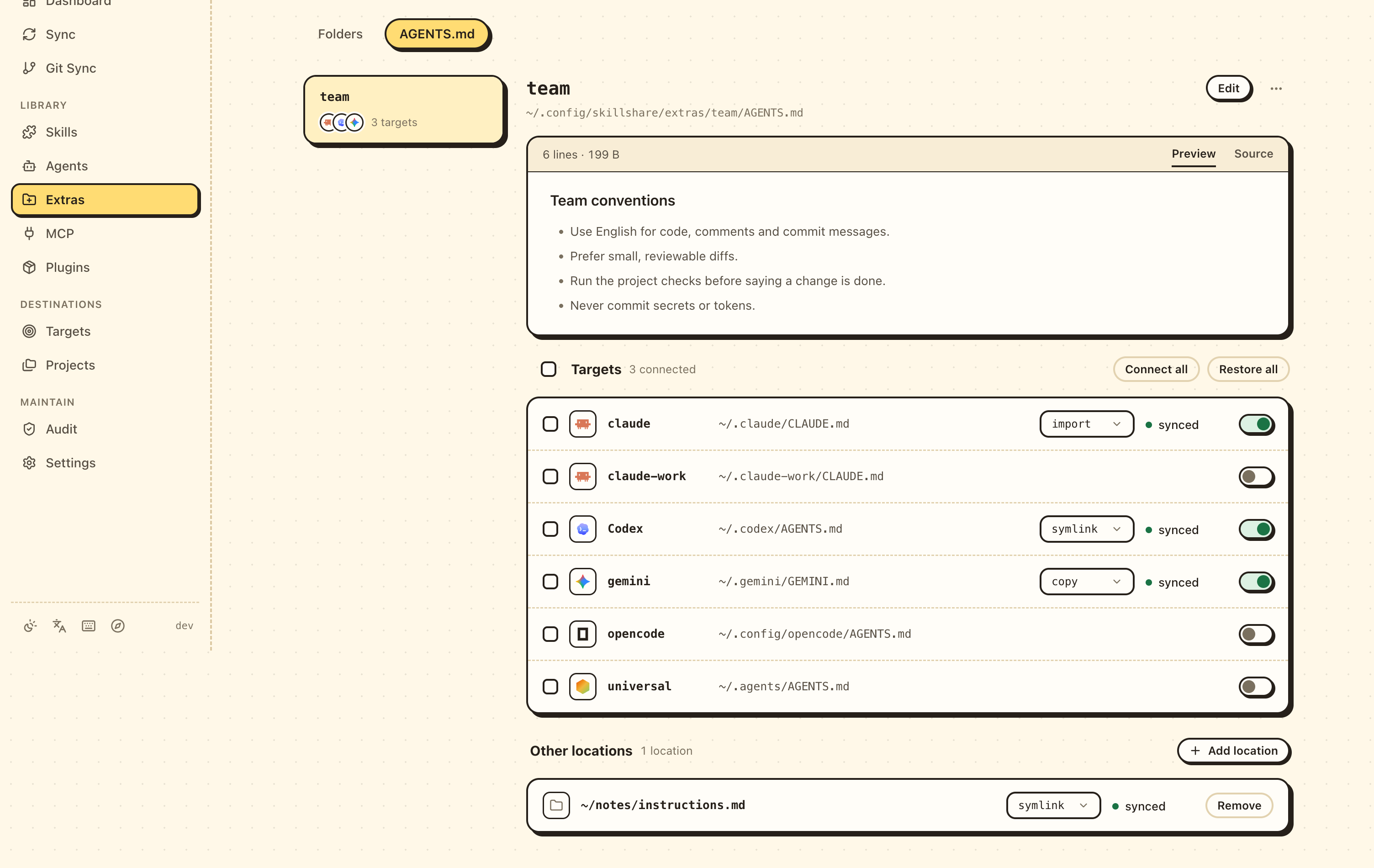
In global mode, one shared file reaches each target like this:
The tab lists the shared files on the left, each with the targets connected to it.
Click one to show it on the right: its path, its content (a rendered Preview by default; switch to
Source for the raw text), and every
target with a switch. The selected file is part of the URL
(/extras?tab=instructions&file=<name>), so a link opens that file directly.
- Turn a target's switch on to connect it. An import target gets one more import line and keeps its other shared files. A target that already uses another shared file asks first, because it can use only one.
- Turn the switch off to restore the target. It shows a preview of the result first. For an import target only this file's import line goes; its other shared files stay.
- Connect all and Restore all list every target they change, with a note on what happens to each one, before they do anything. To change only some targets, tick their rows and use Connect or Restore in the selection bar.
Some targets are special:
- antigravity reads the same
~/.gemini/GEMINI.mdas gemini. When both are targets, antigravity's row follows gemini and can't be changed on its own. - cline and warp read the same
~/.agents/AGENTS.mdas universal. When universal is a target too, their rows follow universal. - cursor isn't listed: its user rules live in Cursor's settings, not in a file.
A target file in link or copy mode can belong to only one shared file. It cannot also hold
another shared file's import line or block. Connect all skips targets held by another shared file, including links you
created yourself; restore that connection before attaching a different file.
Manage one shared file
Each connected target has a mode picker and shows its status. The mode decides how the target gets the shared file:
| Mode | Target file | Available |
|---|---|---|
import | Your own file, with one @import line in the managed block. Changes to the shared file apply right away | Targets that follow @ imports |
prepend | Your own file, with the shared file's content in a managed block at the top. Changes to the shared file are written on the next sync; a block edited by hand shows as modified until you collect or reapply it | Always |
append | The same block, at the end of your file | Always |
symlink | A link to the shared file. Changes apply right away | Not on Windows without Developer Mode |
copy | A copy of the shared file. Saving the shared file in the dashboard updates the copy; after editing the shared file elsewhere, sync again with Sync on this page | Always |
When file links are unavailable, an info tooltip beside Targets explains Windows Developer Mode. Instruction warnings and errors use the dashboard language, with the original English message as a fallback for unknown codes.
The picker marks the default: import for targets that follow @ imports, otherwise
symlink, or copy on Windows without Developer Mode; prepend once the target's file
already holds a shared file in a managed block. A target that uses more than
one shared file can only use import, prepend or append; import is listed but
blocked for targets that do not follow @ imports. Changing the mode syncs the target right away.
Switching back to import restores your last content from import mode (or the
pre-attach content if you have not used import), plus the import block.
A mode change also removes what the previous mode wrote: switching from import to
prepend drops the @ line, switching from prepend or append to import drops the
block, and switching from copy to a block mode rebuilds your own file instead of
keeping the copy. The file never holds the same shared file twice. Switching between
prepend and append moves the block.
On Windows, a target whose file is a link that was created as a folder shows a
warning: tools can't read it. Switching it to copy (or running
skillshare sync extras) fixes it; see
Windows troubleshooting.
If a mode change replaces an edit, the dashboard reports the backup. Switching back to import keeps the last saved own content, including an intentionally empty file.
| Status | Meaning |
|---|---|
synced | The link, copy, import line, or block is in place |
modified | The link was replaced by a different regular file, a managed copy was edited, or a block was edited by hand (see below) |
drift | The target file exists but isn't linked to the shared file, no longer has the import line, or its block is missing or older than the shared file |
not synced | The target file doesn't exist yet |
no source | The shared file itself is missing |
If a folder occupies the target file path, remove or rename the folder, then sync; sync does not replace it.
When a connected target is drift or not synced, the heading shows how many need a
sync and a Sync button that restores this file’s links, copies, import lines, and blocks.
Click a target's file path to see the file as the tool reads it, with Preview and
Source tabs. In Source, each managed block is tinted, and a block edited by hand
is tinted as a warning. For a prepend or append target, a line below the file says
what the block is, or offers the same choices as the row when the block is modified.
Open target page goes to the target's own tab to edit the file.
Edit opens the file in a large editor with Edit and Preview tabs. The side
panel lists the targets that read the saved file right away, and warns about targets
that read only part of a long file. Press ⌘S (Ctrl+S) to save. The previous version is
backed up, and targets in copy mode get the new content too; the message after
saving names them.
The ⋯ menu copies the file's path or deletes the shared file.
Restore and delete
Restoring a target returns it to how it was before the shared file was attached. The file or symlink that was there is put back, or the file is removed if there was none.
Turning a target's switch off first shows what the restore will do:
- By default, the content the file will have after the restore, with a tab that shows the difference from the file now.
- If there was no file before, a note that restoring deletes the file.
- If the file was a link before, the link it puts back.
- If you edited the file after attaching, a note that those edits are not restored;
they are kept as a drift backup.
For an import target, only skillshare's import line is removed; a
CLAUDE.mdthat skillshare created just for the block is removed once it is empty. The shared file itself is kept. If the target is stillmodified, the edited file is first kept as a drift backup. For aprependorappendtarget, only this shared file's block is removed; your own lines and other shared files' blocks stay. A file skillshare created just for the block is removed once nothing else is in it. A block edited by hand is kept as a drift backup first. If the block's markers are damaged, for example the end marker was deleted, the restore stops and the target stays connected until you repair the markers.
Deleting a shared file removes it from the config and restores every target that used it. The file stays in the extras folder.
On Windows, an original junction is recreated as a junction, without requiring Developer Mode or administrator privileges.
When a junction you made is replaced, the warning shows where it pointed.
Other locations
Below the targets, Other locations lists the places a shared file is written that
aren't a tool in the list: a folder that isn't a target, such as notes or a dotfiles
repo, or a different file name, such as instructions.md. It does the same as
skillshare extras <name> --add-target <dir> --as <file>, and locations added with
that command show up here too.
Add location asks for:
- Folder: a full path or one that starts with
~. It is created if missing. - File name: leave it empty to use the shared file's name,
AGENTS.md. - How the location gets the file:
symlink(the default),copy, orimport.importis available only after you tick that the tool reading this file supports@import; other tools would only see a path line.symlinkisn't available on Windows without Developer Mode, wherecopyis the default.
Add and sync writes the file right away; nothing is saved if it can't be written. skillshare refuses a location when:
- A folder is in the way at that file path. Use another file name, or move the folder first.
- The file is a listed tool's own instruction file. Turn that tool on in Targets instead.
- The file already links to or copies another shared file. Remove it from that shared
file first, or use
importon both. - The folder is already a location of this shared file. Change its mode in that row.
Each row shows the file, a mode picker and the status.
Changing the mode syncs the location right away. A location that is drift or
not synced counts toward the heading's Sync button. Remove first shows the
restore preview; Remove and restore puts back what the file
held before and takes the location off the list. A modified location has the same
two buttons as a target row, to collect the edit or overwrite it
(see below).
In a project, locations work the same way; see Shared files in a project.
When a linked file is edited
If you or a tool edit a target's file directly and the link is replaced by a regular
file with different content, its status becomes modified and the row shows a note
with two choices:
- Collect into the shared file: the edit goes into the shared file, and every target using it gets the change. The current shared file is backed up first.
- Overwrite with the shared file: the edited file is kept as a drift backup, and the link comes back. Other targets are not affected.
Either way, a later restore still returns the target to how it was before it used the shared file, not to the edited version.
skillshare sync extras and Sync also reapply the selected mode to a modified file
without asking. The edit is kept as a drift backup first, so choose Collect into
before syncing if the shared file should get it.
A managed copy with edited content also shows modified and offers the same Collect into and Overwrite with choices. Overwrite or Sync reapplies the selected mode, so a target in copy mode remains a copy.
A prepend or append target is modified when the text inside its block no longer
matches what skillshare wrote. The note names the block, and the choices touch only the
block:
- Collect block into the shared file: the block's text becomes the shared file, and every target using it gets the change. The current shared file is backed up first.
- Rewrite block from the shared file: the edited file is kept as a drift backup, and the block is written again. Lines outside the block are not changed.
Unlike a link or a copy, an edited block is never overwritten by
skillshare sync extras or Sync: sync stops with an error for that target until you
choose one of the two.
Change which file a target reads
Change location on a target's tab opens a dialog where you can change the path
and file name the target reads, for example ~/.claude/instructions.md instead of
~/.claude/CLAUDE.md. Tick This tool supports @import if the tool follows @
lines. The setting is saved on the target as
instructions.
Reset to default goes back to the file skillshare knows for that target.
skillshare refuses to change the location while the target uses shared files; switch it back to its own file first. Tools listed on universal's tab have no target entry, so their location can't be changed.
The path must name a file; an existing directory is refused. Change location is disabled while a shared file is attached.
Tools skillshare doesn't know
For a target without a known instruction file, such as a custom target, the tab asks Which instruction file does this tool read?:
- In global mode, enter a full path or one that starts with
~/. - In a project, enter a path relative to the project root.
Tick This tool supports @import if the tool follows @ lines. It can then use
several shared files at once, like claude. The setting is saved on the target as
instructions.
You can also fill it in when you add the tool with Add target → Custom target.
Use Change location to update it later; the dialog also has Remove setting. Removing the setting doesn't delete the file. skillshare refuses to change or remove the location while the target uses shared files; switch it back to its own file first.
Other files a tool reads
Some tools read more than one file. Pi and oh-my-pi, for example, add
APPEND_SYSTEM.md to the end of their default system prompt, so their target pages
have an APPEND_SYSTEM.md tab next to the instruction file tab. It edits the file
the same way; saving creates it if it doesn't exist yet.
To add another file, click + at the end of the tabs and enter its name, such as
SYSTEM.md or prompts/review.md. The name is relative to the tool's folder, shown
in front of the box, and must stay inside it. Files you added show Added by you
and a Remove from tabs button, which only takes the tab away; the file stays and
the tool still reads it. The list is saved on the target as
files.
A target shows up to three file tabs, the instruction file included. The rest go into a +N more files menu; the file you open from it takes the last visible place.
Share with Extras opens Extras → Add extra filled in for that file: a single-file extra with the file's name, targeting its folder. Once the file is linked, its tab shows Shared · <name> and View in Extras, and saving writes through to the shared source.
Projects
Run skillshare ui -p in the project. In a project, every target reads the one
./AGENTS.md that is tracked with the repository, so there is nothing to share or
sync. The AGENTS.md tab under Extras creates or edits that file and shows
whether each target can read it:
| How it gets there | Meaning |
|---|---|
| Reads it directly | The tool's project file is AGENTS.md |
Reads it because there is no CLAUDE.md | claude falls back to AGENTS.md |
CLAUDE.md imports it | The tool's own file has an @AGENTS.md line |
GEMINI.md links to it | The tool's own file is a symlink to AGENTS.md |
CLAUDE.md exists, so claude doesn't read AGENTS.md | The tool's own file hides AGENTS.md |
Reads only GEMINI.md by default | The tool reads its own file, which doesn't exist |
Tools that only read their own file get a one-click fix: Add @AGENTS.md adds the
import line at the top of CLAUDE.md (backing it up first), and Add GEMINI.md
creates GEMINI.md as a link to AGENTS.md.
A project has one AGENTS.md, so it can't be split into groups. To keep personal and
work instructions apart, use shared files in global mode.
The target tabs work in projects too. There the read order shows the project files, and Convert… also offers Rename for claude.
Project-mode imports use paths relative to the target file, so moving the repository keeps the imports working.
Shared files in a project
To put the same file in several places in the repository, such as ./.gemini/GEMINI.md
and ./docs/ai/instructions.md, use Shared files at the bottom of the tab. A
shared file is a single-file extra: its one copy lives in
.skillshare/extras/<name>/ and is committed with the project. New shared file
creates it, and each card lists its locations with the same Add location, mode
picker, status and Remove as Other locations. Differences in a
project:
- Folder is relative to the project root; use
.for the root itself. A path outside the project, such as../notesor~/notes, is refused. - A tool's own file is allowed, for example
./CLAUDE.mdwithimport. - Links and imports use relative paths, so a clone of the repository keeps them working.
Shared files appear only here, not in the Folders & files tab, which lists the
other single-file extras. Delete in the
card's menu first restores every location, then removes the extra from the config;
the file in .skillshare/extras/ is kept.
Backups
skillshare backs up a file before it replaces it, removes it, or changes content
you wrote. Adding or removing its own import line needs no backup. The last 10
versions of each file are kept in skillshare's state directory, under
~/.local/state/skillshare/extras/backups/ on macOS and Linux
($XDG_STATE_HOME/skillshare/extras/backups/ when that variable is set).
Restore uses what was there when the shared file was attached, not the newest
backup. Edits that Sync, Overwrite or Restore replace go to a separate drift/
folder, extras/backups/<id>/drift/, where <id> is derived from the target
file's path. Restore never puts those back.
To see or put back any of these versions, open Settings › Backup › Files in the
dashboard, or use skillshare backup files.
Each version shows why it was saved, such as converting to AGENTS.md or an
Overwrite, and Preview and restore compares it with the current file first.
For the configuration behind shared files and the CLI commands that also handle them, see single-file extras.